Feature
Your Sealed recovery key, from saving it to using it
While your vault is open you can see your recovery key again in Settings, under Sync & Backup, then Recovery Key. Keep a copy off the phone. If you forget your passcode, your recovery key lets you set a new one. The recovery key is the only way to decrypt an iCloud backup on a new iPhone. Because your key never reaches us, we cannot recover your vault or reset your passcode for you.

On this page
Find your key and save it
- Unlock the vault and open Settings.
- Under Sync & Backup, tap Recovery Key. While your vault is open you can see your recovery key again in Settings, under Sync & Backup, then Recovery Key.
- Keep a copy that does not live on this phone. In Settings, under Sync & Backup, the Recovery Key screen offers Save or Print as PDF, Save a sealed copy and Key Guardians, and Make a new recovery key while iCloud Backup is on and up to date.
- Tap I saved my recovery key. In Settings, under Sync & Backup, the Recovery Key row says Saved once you have confirmed that you saved your key, and Not saved until then. The first time you save your recovery key, Sealed also turns on iCloud Backup, which is free.
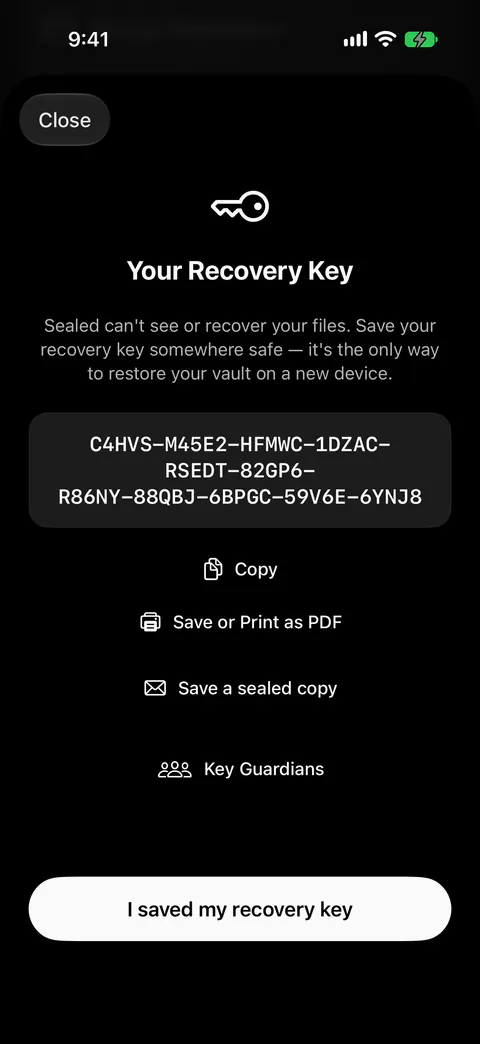
The recovery key is letters and numbers in groups of 5, joined by dashes: 55 or 60 characters, depending on when the vault was made.
The copy you keep somewhere else is what counts: paper in a drawer outlives a lost phone. The pages on a sealed copy and on key guardians cover the other two ways.
What the key really is
During setup Sealed gives you a recovery key: a long code of letters and numbers, in groups, that can bring your vault back. It is a different thing from your passcode. Your passcode is a gate in front of the app. It is not part of the key.
In a vault made by the current Sealed, the recovery key is not the vault key itself: it opens a small envelope that holds the vault key, which is why the recovery key can be replaced.
Keep it as carefully as a house key. Anyone who holds your recovery key can open your vault, and Sealed’s printed key sheet says never to keep it in a photo, a message or an email.
Reset a forgotten passcode
- On the lock screen, tap Forgot passcode? On the lock screen, Forgot passcode? sits under the passcode pad. It asks for your recovery key, and once the key checks out you choose a new passcode.
- Enter the key on the Reset your passcode sheet, then tap Continue. You can type the recovery key in capitals or lower case, with or without dashes and spaces, and Sealed tells you when what you typed is not a valid key. The Forgot passcode? screen also takes a sealed copy of your recovery key with its phrase, or parts from your key guardians through Use guardian parts.
- Choose a new passcode.
- Unlock with it. Resetting your passcode with the recovery key does not open the vault: you come back to the lock screen, and Dual Lock, location lock and Maximum Security still apply.
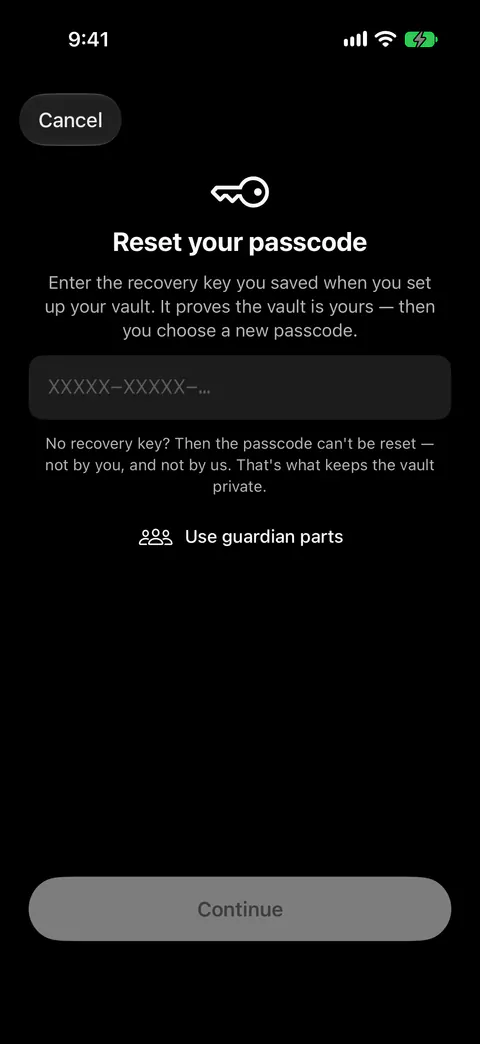
A wrong recovery key is not counted as a wrong passcode, and Forgot passcode? still works while Sealed is making you wait after wrong passcodes.
When the reset doesn’t work
- The sheet says the key belongs to another vault. If the recovery key you type on the reset screen belongs to a different vault, the screen says so. Check that you are using the key saved for this vault, not one from an old setup.
- You have no key at all. Without the recovery key the passcode can’t be reset, not by you and not by us, and the reset screen says so. If Face ID or Touch ID still opens the vault, use that to get in and change the passcode from Settings instead.
- You are on a new iPhone, not the old one. Your vault key stays on the iPhone it was made on, so on a new iPhone Sealed asks for your recovery key. The steps are on the backup and restore page.
Replace a key that may have been seen
A photo of the key in a shared album or a sheet left on a desk calls for a new key.
- Open Recovery Key in Settings.
- Tap Make a new recovery key and confirm. You can make a new recovery key in Settings; the current one keeps working until the new one is saved and your next backup finishes, and anyone with the old key and an old copy of your backup could still open that copy.
- Save the new key the same way as the first, and make new sealed copies and guardian parts for it.
Where Sealed helps, and where it doesn’t
It helps you back in after a forgotten passcode, and onto a new iPhone, as long as one copy of the key survives. Before Sealed installs a recovery key on a new iPhone, it checks that the key opens a real record in your iCloud backup, so a key from another vault, or an Apple Account with no backup, changes nothing.
It doesn’t do these things:
- Undo a key that got out. A new key protects what comes next, but an old backup copy stays open to the old key. You can make a new recovery key in Settings; the current one keeps working until the new one is saved and your next backup finishes, and anyone with the old key and an old copy of your backup could still open that copy.
- Come from us. Sealed has no account, so there is nothing to sign up for. Because your key never reaches us, we cannot recover your vault or reset your passcode for you.
Questions and answers
Does Sealed’s recovery key replace my Apple Account recovery key?
No, they open different things. Apple’s recovery key for an Apple Account is a 28-character code that works together with a trusted phone number and an Apple device. Sealed’s key opens your vault and nothing else. During setup Sealed gives you a recovery key: a long code of letters and numbers, in groups, that can bring your vault back.
Can support look up my recovery key?
Because your key never reaches us, we cannot recover your vault or reset your passcode for you. Never send your key to anyone who asks for it, including someone who says they are from Sealed.
My face still opens the vault but I forgot the passcode. Do I need the key?
No. While your vault is open, Settings, then Passcode & Unlock, then Change Passcode lets you choose a new passcode. The screen asks for the new passcode twice and does not ask for the old one. While you are in, check that your recovery key is saved.
Sources
What this page says about Sealed was checked against the app on .
- Apple Support, How to turn on Advanced Data Protection for iCloud — Apple’s recovery key belongs to an Apple Account and is a separate thing from Sealed’s (read 28 Nov 2026)
- Sealed on the App Store — the listing, which describes the recovery key and the backup it opens
Get Sealed
Sealed is free to download, and Sealed Pro is an optional in-app purchase.

Sealed: Private Photo Vault
Sealed is free to download, and Sealed Pro is an optional in-app purchase.