Feature
Seal a photo, then see what protects it
Tap + in the vault, choose your photos, then decide whether to keep the originals in Photos. Each file gets its own random 256-bit key, and that key is sealed with your vault key. Sealed encrypts every file with AES-256-GCM before it is saved. The original stays readable in Photos until you delete it, and anyone who unlocks the vault the way you do sees what you see.

On this page
Seal a photo in four steps
- Open the vault and tap +. It sits in the bar at the top of the vault, next to the lock button. Choose Photos (with Sealed Pro the item reads Photos & Videos).
- Tick the photos you want. The picker is Apple’s, not Sealed’s. Sealed imports only the photos and videos you choose, and deletes the originals in Photos only when you ask.
- Let the import finish. A short confirmation appears, and the photos take their place in the grid.
- Choose what happens to the originals. After you import photos, Sealed asks whether to delete the originals from Photos or keep them, and says that deleted originals move to Recently Deleted in Photos. Tap Delete Originals from Photos or Keep Originals. If Sealed cannot remove an original from Photos, for example because your Photos access is limited, it tells you how many stayed where they were and that your sealed copies are safe in the vault.
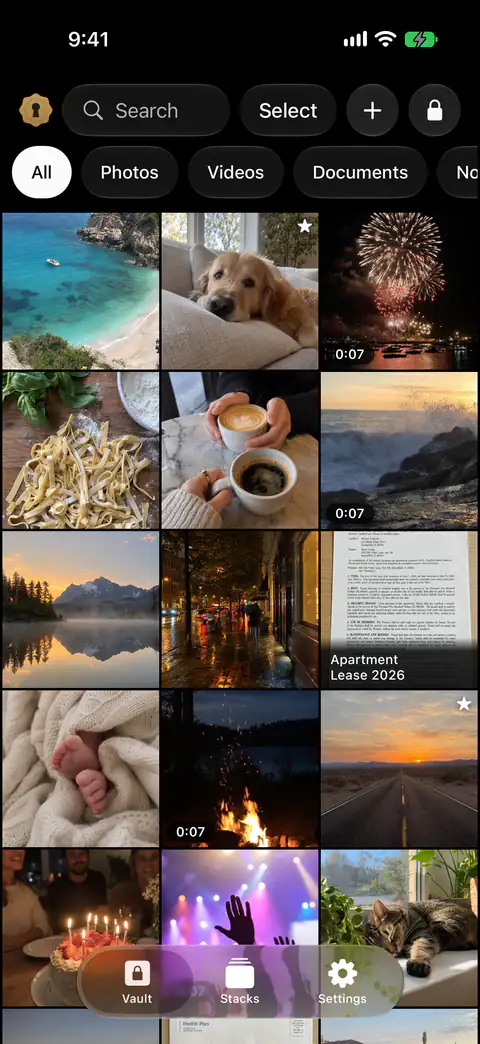
If tapping Photos opens the plans instead of the picker, the free plan is full. The free plan holds up to 100 photos.
What changed for the photo
Between step 2 and step 3, the photo stopped being a plain image file:
- It received a key nobody else shares. Each file gets its own random 256-bit key, and that key is sealed with your vault key.
- Its contents were encrypted on the iPhone. Sealed encrypts every file with AES-256-GCM before it is saved.
- Its name and details were sealed as well. Names, notes and the fields of a record are sealed with your vault key too, not just the photos.
- iOS added a lock of its own. Sealed creates each encrypted file with iOS Complete Protection, which Apple calls Class A. Apple’s Platform Security guide explains that for this class, the key that reads the files is thrown away shortly after the phone locks.
- The thumbnail was treated the same way. Thumbnails are encrypted like the photos, and Sealed wipes the decrypted copies it shows in the grid when the vault locks.
Where the vault key lives
Your vault key is a random 256-bit key. It is not made from your passcode. Your vault key is kept in the iPhone Keychain, on this device only, and it can be read only while the phone is unlocked. Your passcode plays a different part. Your passcode is a gate in front of the app. It is not part of the key.
That arrangement has one consequence worth knowing. Without Maximum Security, the app can read your vault key whenever the phone is unlocked, because the key sits in the Keychain. Maximum Security binds the key to a live face or fingerprint match, and a vault passphrase binds it to a phrase you type at each unlock. Maximum Security is part of Sealed Pro.
When it leaves for iCloud
The first time you save your recovery key, Sealed also turns on iCloud Backup, which is free. Files, names, notes and record fields are encrypted on your iPhone before they are uploaded, so iCloud receives only ciphertext.
Your iPhone’s own backup works differently. Sealed keeps its encrypted files out of your iPhone’s own backups, because the key never leaves this iPhone and a copy in a phone backup would not open on a new phone. The backup and restore page walks through turning backup on and bringing the vault back on a new phone.
Check what protects your vault today
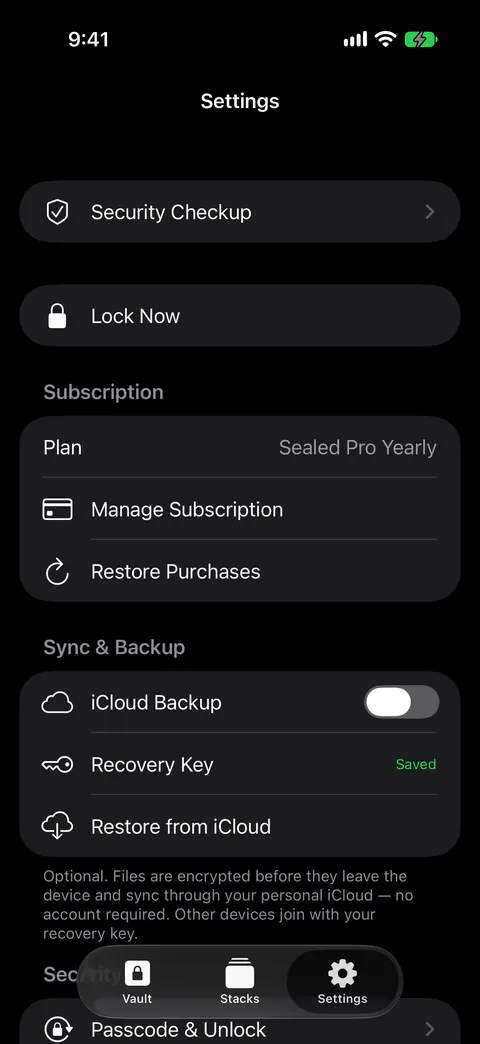
- Open Settings in Sealed. The Security Checkup is the first row in Settings, and it isn’t offered in a decoy vault.
- Tap Security Checkup. The Security Checkup looks at your recovery key, iCloud Backup, passcode, Auto-Lock, break-in alerts, decoy vault, extra ways back and the originals still in Photos.
- Start with anything marked worth a look.
Where Sealed helps, and where it doesn’t
It helps keep a photo unreadable outside the vault, and it shortens the time a photo sits on screen. Sealed locks as soon as you leave it unless you choose a delay, and it covers its contents in the app switcher. Sealed covers its contents while the screen is being recorded or mirrored, and that is on by default.
It doesn’t do these things:
- Tell you apart from someone who unlocks the vault like you. A person who knows your passcode gets in as you would. Dual Lock asks for your passcode and a Face ID match together, and it is part of Sealed Pro.
- Prevent a screenshot. Apple’s documentation only notifies an app once a screenshot exists. Sealed warns you after you take a screenshot while a record’s values are showing, and it does not block screenshots.
- Notice a second camera. Sealed’s cover follows what iOS reports as a captured screen: screen recording, AirPlay and wired mirroring, and screen sharing. A phone held up to the screen is not something iOS reports to apps.
- Protect a copy outside the vault. Until you delete them, the originals stay in Photos, outside the vault. Once a photo is back in your library, the guide on whether Apple can see your photos applies to it.
- Open your vault for you if the key is lost. Because your key never reaches us, we cannot recover your vault or reset your passcode for you.
Questions and answers
Is my passcode the key that encrypts my photos?
No. Your vault key is a random 256-bit key. It is not made from your passcode. Your passcode is a gate in front of the app. It is not part of the key.
Can the people who make Sealed open my vault?
We run no server, so there is nothing of yours for us to see. Your vault key never reaches us. Because your key never reaches us, we cannot recover your vault or reset your passcode for you.
Has anyone outside checked Sealed’s encryption?
Sealed has not had an independent security audit. The security page lays out how the keys fit together, so you can judge the design yourself.
Sources
What this page says about Sealed was checked against the app on .
- Apple Platform Security, Data protection classes — Complete Protection, the class Sealed’s files use, and what happens to its class key after the phone locks (read 28 Nov 2026)
- Apple Developer Documentation, userDidTakeScreenshotNotification — an app learns of a screenshot only once it has been taken (read 28 Nov 2026)
- Apple Developer Documentation, UIScreen.isCaptured — what iOS counts as a captured screen (read 28 Nov 2026)
- Sealed on the App Store — the listing, which describes the encryption and the backup
Get Sealed
Sealed is free to download, and Sealed Pro is an optional in-app purchase.

Sealed: Private Photo Vault
Sealed is free to download, and Sealed Pro is an optional in-app purchase.