Feature
Turn on iCloud Backup, check it, and bring your vault back
Save your recovery key in Settings and backup turns on by itself. Files, names, notes and record fields are encrypted on your iPhone before they are uploaded, so iCloud receives only ciphertext. To bring the vault back on a new iPhone, install Sealed, tap Restore a backup and type the same recovery key. The recovery key is the only way to decrypt an iCloud backup on a new iPhone.

On this page
Turn backup on
Sealed asks you to save your recovery key before it turns backup on. Without the key, a backup could not be opened on a new phone anyway.
- Open Settings and find Sync & Backup.
- Tap Recovery Key. Write the key down, save it as a PDF, or make a sealed copy (the recovery key page covers each).
- Tap I saved my recovery key. The first time you save your recovery key, Sealed also turns on iCloud Backup, which is free.
- Give the first pass time. It sends the whole vault, so a large one takes a while on a slow connection.
Backup needs an iCloud account on the iPhone, and Sealed tells you when you need to sign in. You can switch iCloud Backup off again in Settings, under Sync & Backup.
Know that it worked
You don’t have to open Settings to check. The vault home shows when you last backed up, or says plainly that your vault is only on this iPhone.
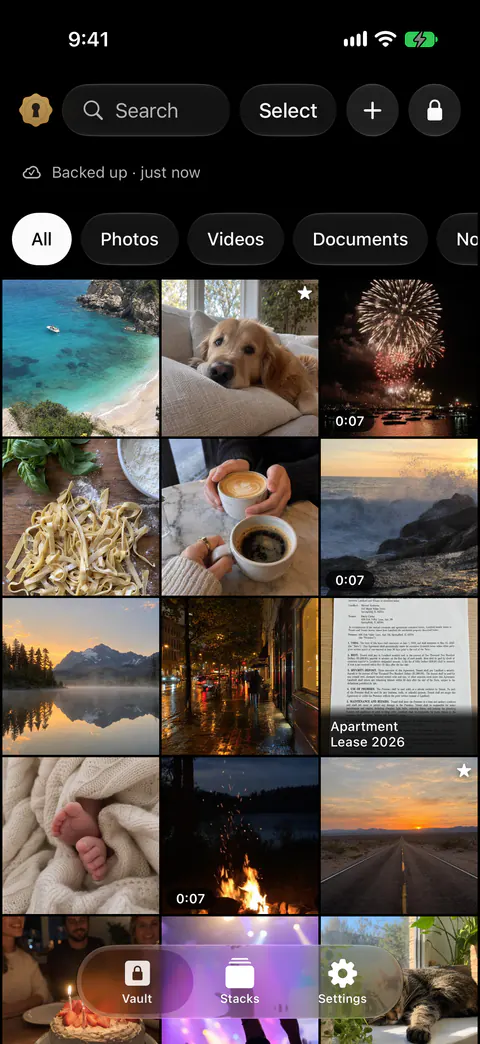
If the line says your vault is only on this iPhone, backup is not on yet.
For numbers, open Settings, Sync & Backup. With iCloud Backup on, Settings, under Sync & Backup, shows the time of your last backup and how many items are backed up, shows how many are pending when some are waiting, and has a Back Up Now button.
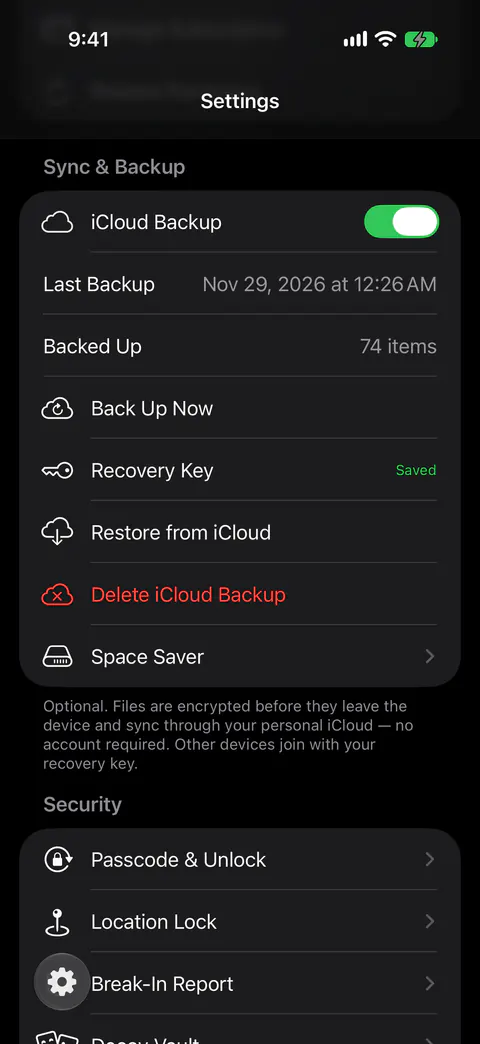
What the backup carries: Backup carries your photos, videos and documents, your stacks, your notes and your records. Items in the decoy vault are not part of your iCloud backup.
Restore on a new iPhone
Have the recovery key in front of you first. A restore needs the new iPhone to be signed in to the Apple Account you backed up with, and a connection.
- Install Sealed and open it. On the first screen of a fresh install, Restore a backup leads to a screen that asks for your recovery key and says your files are decrypted only on this device.
- Type or paste the key, then tap Restore My Vault. You can type the recovery key in capitals or lower case, with or without dashes and spaces, and Sealed tells you when what you typed is not a valid key.
- Wait for the check. Before Sealed installs a recovery key on a new iPhone, it checks that the key opens a real record in your iCloud backup, so a key from another vault, or an Apple Account with no backup, changes nothing.
- Let the files come down. On a new iPhone your files come down one by one once the vault is in place, and whatever doesn’t fit stays in iCloud and opens when you tap it.
Once the vault is open, a few things differ from the old phone:
- A vault restored onto an iPhone with Face ID or Touch ID can have no Sealed passcode yet, and you set one in Settings, under Passcode & Unlock.
- After a restore with your recovery key, Maximum Security is off, and you turn it on again in Settings.
If Sealed came across with your other apps instead of from a fresh install, the route differs a little. The guide on whether private photos transfer to a new iPhone compares both routes.
When it goes wrong
| What you see | What it means |
|---|---|
| The key is called not valid | A group is missing or mistyped: compare it with your saved copy and try again. |
| The key doesn’t match the backup | Before it installs a recovery key, Sealed checks that the key opens the backup in your iCloud account. A well-formed key from another vault is refused with a message that it doesn’t match the backup, and nothing on the iPhone changes. |
| No backup found | To restore, the new iPhone must be signed in to the Apple Account you backed up with, and if it is not, Sealed says it found no backup in that iCloud account. |
Space Saver, and deleting the app
Space Saver, part of Sealed Pro, keeps originals in your encrypted iCloud backup and frees space on your iPhone. The Space Saver page covers it.
Deleting the app doesn’t delete your iCloud backup: Delete iCloud Backup in Settings does. If you delete Sealed from an iPhone while iCloud Backup is off, the vault on that iPhone is deleted with it.
Where Sealed helps, and where it doesn’t
It helps when an iPhone is lost, broken, wiped or replaced, as long as you have the key. You can restore your vault on a new iPhone from your backup, with your recovery key.
It doesn’t do these things:
- Rescue a vault whose key is gone. Because your key never reaches us, we cannot recover your vault or reset your passcode for you. Sealed can’t see or recover your files.
- Carry everything across. Break-in photos and their locations stay on the iPhone: they are not part of your iCloud backup and never reach us. Your passcodes, the decoy one included, stay on the iPhone where you made them, so a new iPhone starts without a decoy.
- Promise it was tested on real iCloud. Sealed’s automated tests run a whole vault through backup and a restore on a new phone from the recovery key against a model of iCloud, not against iCloud itself. Look at Last Backup and Backed Up once the first pass has had time, and try a restore on a spare device if you have one.
Questions and answers
Is the backup included in the free plan?
Encrypted iCloud backup is free. Apple says the data an app keeps in a user’s CloudKit private database is accessible only to that user by default, isn’t visible in the developer portal, and counts toward the user’s iCloud storage.
What can Apple tell from my Sealed backup?
In your iCloud backup, Apple can see each record’s type, a random record name, when the record was created and changed, the size of its files and how many records there are, but not what is in them.
Can a second iPhone or an iPad use the same backup?
Other devices join your backup with your recovery key. If your Apple Account already holds a Sealed backup made with a different recovery key, Sealed turns backup off and says so, instead of putting two vaults in one place.
Sources
What this page says about Sealed was checked against the app on .
- Apple Developer Documentation, CKContainer privateCloudDatabase — the private database Sealed’s backup is kept in, who can read it, and whose storage it uses (read 28 Nov 2026)
- Sealed on the App Store — the listing, which describes the encrypted backup and the restore
Get Sealed
Sealed is free to download, and Sealed Pro is an optional in-app purchase.

Sealed: Private Photo Vault
Sealed is free to download, and Sealed Pro is an optional in-app purchase.