Feature
Find the private photos already in your camera roll
Find Private Photos checks your camera roll for passports and IDs, cards, codes, recovery phrases and password screenshots, and offers to seal them. Find Private Photos runs on your iPhone: nothing is sent anywhere, and the text it reads isn’t kept. Find Private Photos picks out photos that look like they belong in your vault, and nothing is sealed until you choose it.

On this page
The problem it solves
A photo of a passport for a hotel booking, a bank card shot for a form, a screenshot of a login: each was meant to be temporary, and each is still in the camera roll years later, between birthday pictures. Scrolling thousands of photos to find them is the job nobody does. Find Private Photos does the scrolling for you and shows you a short list.
Run a check
- Open Find Private Photos. Find Private Photos is in the vault’s plus menu and in Settings under Library, and it is never offered in a decoy vault.
- Read the first page, which says what it looks for, then tap Check My Photos.
- Allow photo access when iOS asks. With limited photo access, Find Private Photos checks only the photos you shared with Sealed, and offers Share More Photos.
- Watch it read. The screen shows your photos passing through and a count of how many it has checked out of the total.
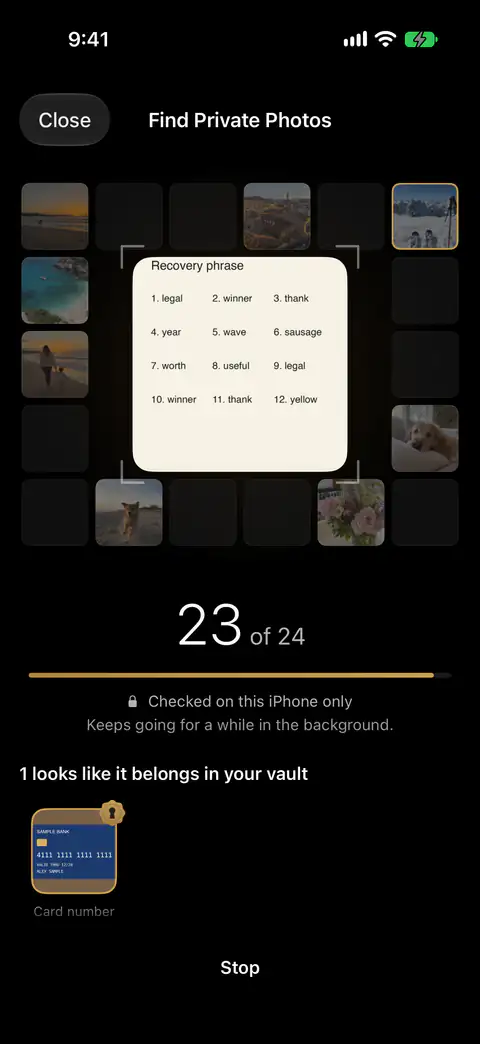
You don’t have to stay on the screen. Find Private Photos keeps checking for a while if you leave Sealed, and can let you know when it’s done. Tap Stop if you want to look at the finds so far; Keep Checking carries on from where it stopped.
Go through what it found
When it finishes, the results come in groups, each under its own heading:
| Heading | What lands there |
|---|---|
| Seed phrases | A written list of recovery words for a wallet |
| Passports and IDs | A passport page or an ID card |
| Bank cards | The front of a payment card |
| 2FA setup codes | The QR code or key for a sign-in code app |
| Password screenshots | A screen that shows a password or recovery code |
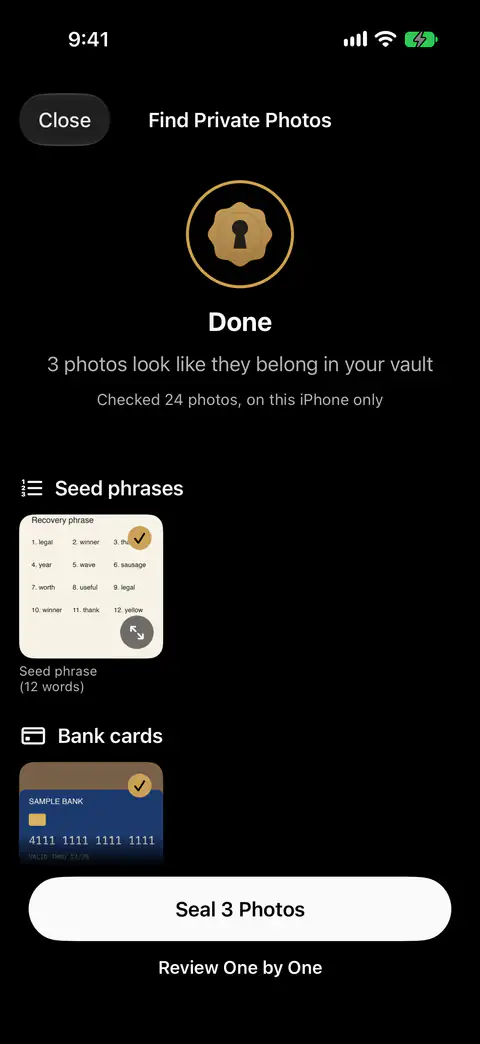
Under every photo is the reason it was picked out. Find Private Photos picks out photos that look like they belong in your vault, and nothing is sealed until you choose it.
- Tap a photo to leave it out, or tap it again to put it back. The button at the bottom counts what will be sealed.
- To decide one photo at a time, tap Review One by One. Each photo opens large with Seal This One and Leave It in Photos.
- Tap Seal with the count, for example Seal 6 Photos.
Decide about the originals
Sealing makes encrypted copies in your vault. Sealed encrypts every file with AES-256-GCM before it is saved. Until you delete them, the originals stay in Photos, outside the vault.
When the sealing is done you get two choices:
- Continue keeps the originals in Photos.
- Delete Originals from Photos removes them. After it seals the photos you chose, Find Private Photos offers Delete Originals from Photos, and iOS asks you to confirm before anything is deleted.
When you delete photos and videos in Photos, they go to its Recently Deleted album for 30 days, and after that they are permanently deleted. Empty that album too if you want the originals gone from the phone. The Recently Deleted guide shows where it is.
If something looks wrong
- It says Sealed can’t see your photos. Photo access was refused. Use Open Settings on that page and allow access for Sealed. Your vault isn’t affected.
- It checked fewer photos than you have. Access is probably limited to a selection. Tap Share More Photos, or read the limited photo access guide.
- A photo you expected is missing. To check a photo, Sealed reads only the copy already on your iPhone and never downloads it from iCloud Photos. Photos stored only in iCloud are skipped.
- It found something harmless. Leave it out. Nothing is sealed until you choose it.
What stays on the phone
Find Private Photos runs on your iPhone: nothing is sent anywhere, and the text it reads isn’t kept.
Sealed remembers only which photos it has checked and what it found in each, never the text, in a file on the iPhone that is left out of device backups and never synced.
Free or Pro
Find Private Photos is free, and the photos it seals follow the same free-plan rules as any import. The free plan holds up to 100 photos.
Where Sealed helps, and where it doesn’t
It helps you find the photos you forgot you took, and move them into the vault on your own terms, one tap per photo or all at once.
It doesn’t do these things:
- Catch every one. It goes by how a photo looks, so it can miss one or suggest a harmless one. Glance through your screenshots yourself now and then.
- Check photos that aren’t on this iPhone. To check a photo, Sealed reads only the copy already on your iPhone and never downloads it from iCloud Photos.
- Reach copies elsewhere. A photo already sent in a chat or added to a shared album has copies the vault can’t touch. See where to store a passport photo.
- Delete originals on its own. Until you delete them, the originals stay in Photos, outside the vault.
Questions and answers
Are my photos uploaded to be checked?
Find Private Photos runs on your iPhone: nothing is sent anywhere, and the text it reads isn’t kept. To check a photo, Sealed reads only the copy already on your iPhone and never downloads it from iCloud Photos.
Does it need Sealed Pro?
Find Private Photos is free, and the photos it seals follow the same free-plan rules as any import.
What does Sealed keep after a check?
Sealed remembers only which photos it has checked and what it found in each, never the text, in a file on the iPhone that is left out of device backups and never synced.
Sources
What this page says about Sealed was checked against the app on .
- Sealed on the App Store — the What’s New text for version 1.0.2, which introduced Find Private Photos
- Apple Support, deleting photos and videos on iPhone — how long Photos keeps deleted originals in Recently Deleted
Get Sealed
Sealed is free to download, and Sealed Pro is an optional in-app purchase.

Sealed: Private Photo Vault
Sealed is free to download, and Sealed Pro is an optional in-app purchase.