Guide
Can you password-protect a folder on iPhone? What works instead
Not directly: the Files, Notes and Photos apps have no password option for a folder. What you can do for free is lock the whole Files app with Face ID, put a password on each PDF in Preview, or lock notes one at a time. If you need a folder with its own code, separate from your iPhone passcode, and its files encrypted, move them into a vault app that can lock a folder inside it.

On this page
What the iPhone can and can’t lock
| What you want to lock | Built-in password? | Closest free option |
|---|---|---|
| A folder in Files | No | Lock the Files app with Face ID |
| One PDF | Yes | Lock it in Preview |
| A folder in Notes | No | Lock each note |
| An album in Photos | No | The one locked album, or lock the Photos app |
| Other files (Word, images, zip) | No | Lock the app that holds them |
The pattern is the same everywhere: iOS locks an app, or a single PDF or note, never a folder as such.
Option 1: lock the whole Files app
- Go to the Home Screen.
- Touch and hold Files until the Quick Actions menu opens.
- Tap Require Face ID (or Touch ID, or Passcode), and confirm.
Apple’s guide says the app locks again each time you quit it. Apple lets you require Face ID, Touch ID or your passcode to open an app, and says information inside a locked app won’t appear in other places such as CarPlay, notification previews, search, Siri suggestions or your call history.
What it covers: every folder in Files at once, plus the app’s content in search and notification previews. What it doesn’t: it is your iPhone’s own face and passcode, so anyone who knows the passcode gets in. It also locks the folders you don’t care about. A locked app is locked only on that iPhone, and its locked status doesn’t sync with iCloud.
Option 2: put a password on each PDF
- Open the PDF in the Preview app.
- Tap the Actions menu next to the file name, then tap Lock.
- Type the same password in Password and Verify, then tap Done.
These steps are from Apple’s iPhone guide, which suggests duplicating the file first if you also want an unlocked copy. The Preview app on iPhone can lock a PDF with a password, which Apple describes as a way to prevent others from editing or deleting your work.
What it covers: that one file, on any device, since the password travels with it. Good for a PDF you send. What it doesn’t: other file types, and ten files mean ten passwords. Apple describes no reset, so a forgotten password means a lost file.
Option 3: lock notes one by one
Open a note, tap the More button, tap Lock, then choose Use iPhone Passcode or Create Password (Apple’s steps). In Notes you can lock a note with your iPhone passcode or with a password only for Notes, and Apple says both options use end-to-end encryption for iCloud accounts.
What it covers: typed text, a list of account numbers or codes. What it doesn’t: a folder of twenty notes means twenty locks, and any note you add later starts open. Apple says you can’t lock notes that have tags, PDFs, audio, video, or Keynote, Pages or Numbers documents, or notes you share with someone else.
What about Compress?
Files can compress a folder into a zip, but Apple’s guide shows no password option for it. A zip makes a folder smaller to send; it doesn’t lock it.
Option 4: a real folder lock, inside a vault app
The only way to get a folder with its own code on an iPhone is an app that creates its own locked space. Before you trust one with a folder of files, check:
- Its own code. Does the folder ask for a code that isn’t your iPhone passcode?
- Encryption. Are the files encrypted inside the app, or just behind a screen?
- Nesting. Does a lock cover the folders inside it?
- Leftovers. The originals stay in Files until you delete them there.
In Sealed, folders are called stacks, and files are encrypted inside the vault. Sealed encrypts every file with AES-256-GCM before it is saved. Each file gets its own random 256-bit key, and that key is sealed with your vault key. Names, notes and the fields of a record are sealed with your vault key too, not just the photos.
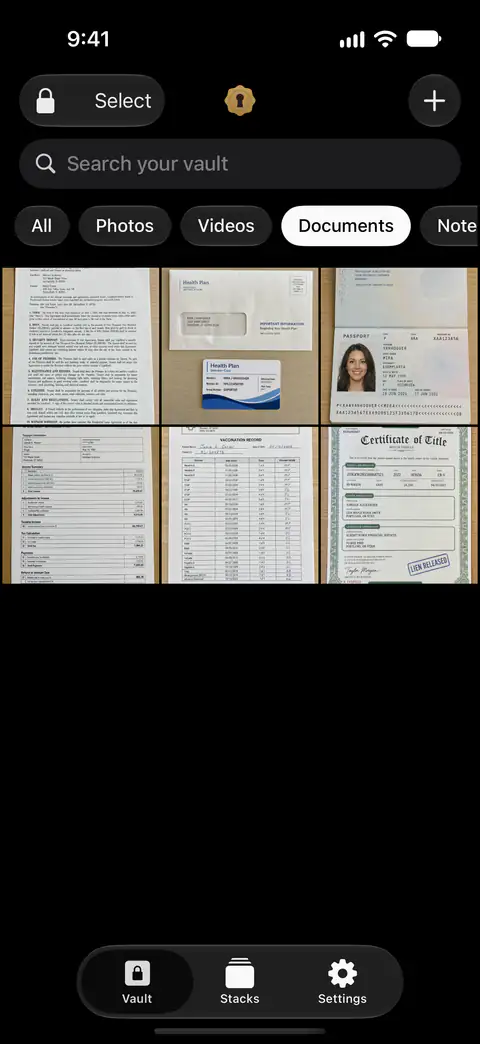
- Bring the files in. Tap the plus button at the top of the vault, then Files & Documents, and pick them in the file browser. A PDF or other file that is not a photo, video or audio file becomes a document in the vault, with a thumbnail that is sealed too, and you find it under Documents.
- Make a stack. On the Stacks tab, tap the plus button and name it. Stacks and sub-stacks keep your vault organized.
- Put the files in it. In the vault, tap Select, choose the files and tap Add to Stack.
- Lock it. Open the stack, tap the More button at the top right, then Lock Stack, and choose its PIN. In a stack’s menu, Lock Stack gives that stack a PIN of its own, which you can change or remove later. A locked stack also locks every sub-stack inside it.
- Delete the originals in Files once the vault copies open. Until you delete them, the originals stay in Photos, outside the vault.
What is in a locked stack stays out of the vault’s main grid and search until that stack is unlocked.
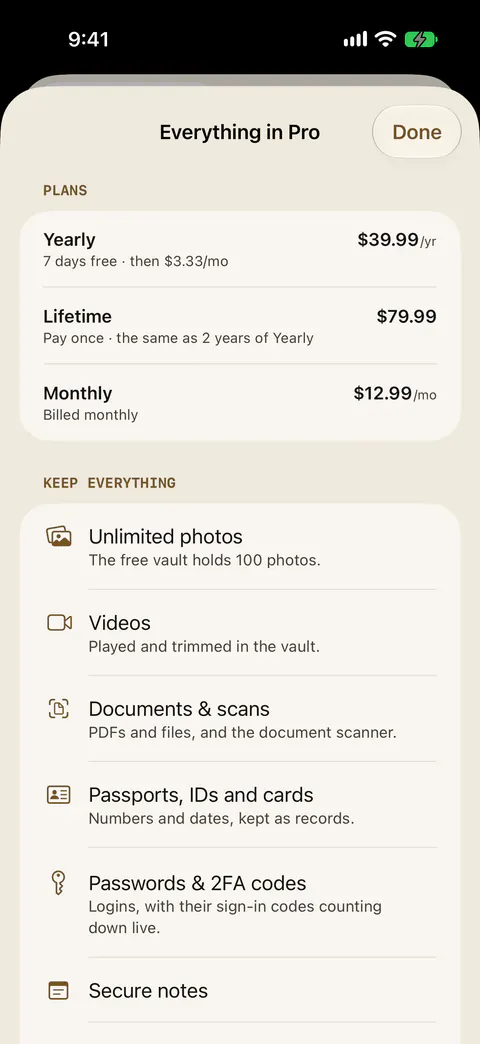
Locked stacks and documents are part of Sealed Pro. Each stack can have its own lock, and stack locks are part of Sealed Pro. On the free plan you can add photos. Videos, documents, notes and records need Sealed Pro.
The whole vault already sits behind a passcode of its own, so a locked stack is a second code on top of the first. Sealed has a passcode of its own, a gate inside the app that is separate from your iPhone passcode.
Where Sealed helps, and where it doesn’t
It helps with a folder that has a PIN of its own, on top of the vault’s passcode, covering every stack inside it. In a stack’s menu, Lock Stack gives that stack a PIN of its own, which you can change or remove later. A locked stack also locks every sub-stack inside it.
It helps because what’s inside is encrypted, names included, not just put behind a screen. Names, notes and the fields of a record are sealed with your vault key too, not just the photos.
It doesn’t lock stacks or hold documents on the free plan. Each stack can have its own lock, and stack locks are part of Sealed Pro. On the free plan you can add photos. Videos, documents, notes and records need Sealed Pro.
It doesn’t empty the original folder in Files: you delete those copies yourself. Until you delete them, the originals stay in Photos, outside the vault.
It can’t open the vault for you if you lose both your passcode and your recovery key. Because your key never reaches us, we cannot recover your vault or reset your passcode for you.
Questions and answers
Can I put a password on a folder in the Files app?
No. Apple’s guide lists copy, move, compress, duplicate, rename, tags and favorite for a folder, and no lock. Lock the whole Files app with Face ID, or password each PDF in Preview.
Is a zip file I make in Files password-protected?
Apple’s guide describes Compress with no password option, so treat the zip as open to anyone who can open the Files app.
Can I lock a folder of notes?
No, only single notes. In Notes you can lock a note with your iPhone passcode or with a password only for Notes, and Apple says both options use end-to-end encryption for iCloud accounts. Apple says you can’t lock notes that have tags, PDFs, audio, video, or Keynote, Pages or Numbers documents, or notes you share with someone else.
Are files on my iPhone encrypted anyway?
Yes, while the phone is locked. Apple says all data on an iPhone is stored in encrypted form, and that setting a passcode turns on Data Protection. Once you unlock it, files open for whoever is holding it, which is why a second lock on a folder matters.
Does a locked stack in Sealed cover the stacks inside it?
Yes. A locked stack also locks every sub-stack inside it. Each stack can have its own lock, and stack locks are part of Sealed Pro.
Sources
What this page says about Sealed was checked against the app on .
- Apple iPhone User Guide, Organize files and folders in Files on iPhone (iOS 27) — read 13 Nov 2026; a folder’s options are Copy, Move, Compress, Duplicate, Delete, Rename, Tags and Favorite; no lock or password is listed
- Apple iPhone User Guide, Lock or keep an app off the Home Screen (iOS 27) — read 28 Nov 2026; touch and hold, Require Face ID; relocks after you quit; what a locked app keeps out of search and notifications
- Apple iPhone User Guide, Lock PDFs in Preview on iPhone (iOS 27) — read 28 Nov 2026; the Actions menu, Lock, Password and Verify
- Apple Support, How to lock or unlock notes on your iPhone or iPad (article 102537) — published December 11, 2025, read 28 Nov 2026; notes are locked one by one; what can’t be locked
- Sealed on the App Store — the listing for the vault app used as the example
Get Sealed
Sealed is free to download, and Sealed Pro is an optional in-app purchase.

Sealed: Private Photo Vault
Sealed is free to download, and Sealed Pro is an optional in-app purchase.