Guide
Lock the whole Photos app with Face ID, then test the gaps
On the Home Screen, touch and hold Photos until the quick actions menu opens, then tap Require Face ID (or Touch ID, or Passcode). Photos then asks for your face every time it opens, and locks again when you quit it. It is a lock on viewing the app on that one iPhone: your iPhone passcode also opens it, other apps keep the photo access you gave them, and your iPad and Mac are not locked by it.

On this page
Turn the lock on in three steps
This is for the person who doesn’t want to pick out photos one by one. Maybe a relative borrows your phone to make calls, or a child plays games on it, and the whole camera roll should stay shut. The steps are in Apple’s iPhone User Guide from the iOS 18 edition to the current one.
- Go to the Home Screen.
- Touch and hold Photos until the quick actions menu opens.
- Tap Require Face ID (it reads Require Touch ID or Require Passcode on some iPhones).
To lock an app, touch and hold it on the Home Screen and tap Require Face ID, Touch ID or Passcode, and it locks again each time you quit it.
To turn it off: touch and hold Photos again, tap Don’t Require Face ID, and confirm.
Test it the way someone else would meet it
Spend one minute checking, because a lock you assume is on is worse than none.
- Open Photos from the Home Screen. A face check should appear before any thumbnail.
- Quit Photos, then open it again. It should ask again.
- Search the Home Screen for a place you photographed. Apple lets you require Face ID, Touch ID or your passcode to open an app, and says information inside a locked app won’t appear in other places such as CarPlay, notification previews, search, Siri suggestions or your call history. Spotlight should not show those pictures. Without the lock, it can. Spotlight on iPhone can find text in your photos using Live Text and can open images from your photo library.
- Share something from another app, such as Messages, and open its photo picker. Apple’s guide doesn’t say whether the lock reaches the pickers other apps show, so note what your own phone does.
Where the lock doesn’t reach
| Gap | Why |
|---|---|
| Someone who knows your iPhone passcode | The check takes the passcode as well as your face |
| Apps with access to your photos | They read the library through their own permission |
| Your iPad and Mac | A locked app is locked only on that iPhone, and its locked status doesn’t sync with iCloud. |
| The photos themselves | They are stored as before; only opening the app is checked |
On apps: Apple says you control whether third-party apps can access information in Photos, Contacts, Calendar and other apps, and Settings, under Privacy & Security, lists the apps that asked and lets you turn each one on or off. A face check on Photos doesn’t change those switches. Apple says that giving an app full access to your photos grants it your photos and videos, including the ones in the Hidden album even if that album is locked.
On your other devices: With iCloud Photos on, your photos and videos are stored in iCloud so that you can reach them on all your devices. Lock Photos on each of them as well.
On the passcode: the same is true of the Hidden album. From iOS 16, Photos keeps its album for set-aside photos, and Recently Deleted, locked by default: they open with Face ID, Touch ID or your iPhone passcode. If the person you are worried about knows your code, no built-in lock in Photos is the answer. A password that is not your passcode is; see password protecting photos.
Locking the whole app or a few photos
The whole-app lock and the Hidden album solve different problems.
- Lock the app when nothing in the camera roll should be visible to the person holding the phone.
- Move a few photos into the Hidden album when the camera roll can stay open and only some pictures shouldn’t come up. That is covered in taking photos off the grid. Photos you move out of the Library into Apple’s separate locked album stay out of the Library, other albums and the Photos widget, and from iOS 16 that album asks for authentication to open.
- Give one photo its own lock when it should stay shut even from someone who can open Photos: lock a single photo.
Face ID on a vault, and what it adds
A vault app such as Sealed: Private Photo Vault uses Face ID too, but in front of photos it keeps encrypted and outside your library. During setup Sealed offers Face ID or Touch ID, and you can choose Not now. In Settings, under Passcode & Unlock, you can turn Face ID or Touch ID Unlock off, and set, change or remove a pattern.
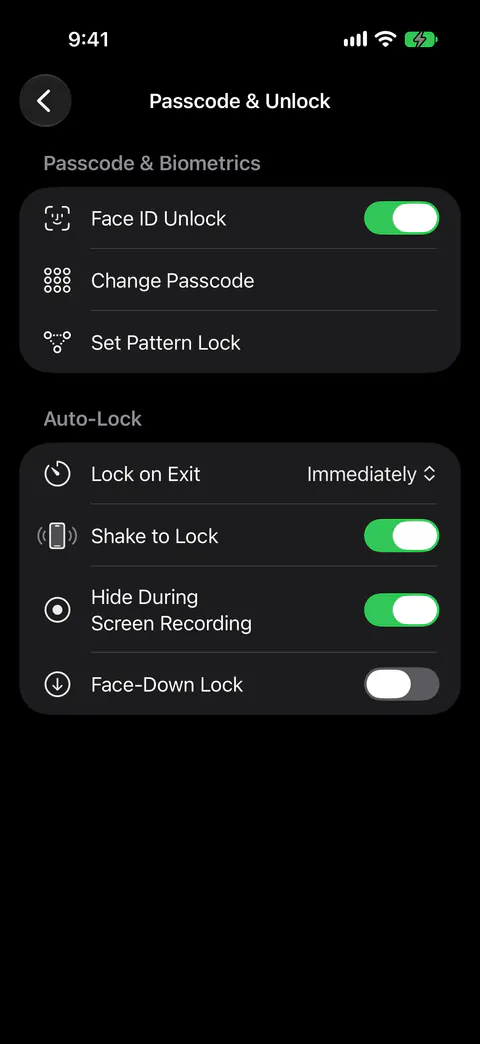
Plain Face ID in an app has the same catch as the Photos lock. With plain Face ID unlock on, someone who knows your iPhone passcode can open Sealed through the Face ID prompt. Sealed closes it with Dual Lock, which asks for its own passcode and then your face, and refuses your iPhone passcode as the second step. Dual Lock asks for your passcode and a Face ID match together, and it is part of Sealed Pro. Dual Lock’s second step takes Face ID or Touch ID only: your iPhone passcode can’t stand in for it, so one watched passcode can’t do both halves.
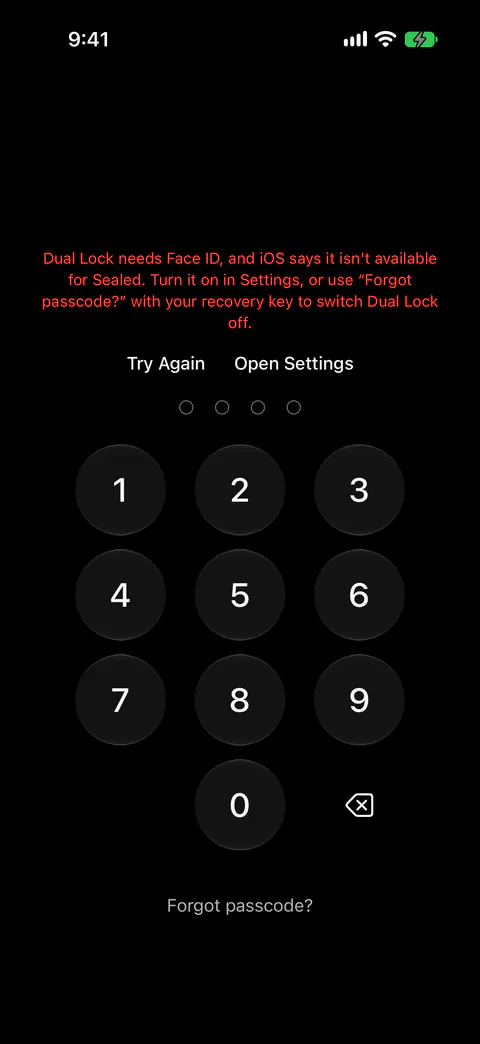
If Dual Lock can’t ask for a face, because Face ID is off for Sealed or locked, the vault stays shut instead of opening on the passcode alone, and your recovery key can turn Dual Lock off.
Where Sealed helps, and where it doesn’t
It helps with a passcode of its own in front of the photos you move in, so your iPhone passcode alone is not enough once Dual Lock is on. Sealed has a passcode of its own, a gate inside the app that is separate from your iPhone passcode.
It helps because what you move in is encrypted, not only locked on screen. Sealed encrypts every file with AES-256-GCM before it is saved.
It doesn’t lock the Photos app or the rest of your library: whatever stays there keeps only iPhone’s protection. Until you delete them, the originals stay in Photos, outside the vault.
It doesn’t offer Dual Lock on the free plan. Sealed Pro adds privacy tools including the decoy vault, a duress passcode, break-in photos, Dual Lock, Location Lock, Maximum Security, locked stacks and seven lock screens.
It doesn’t hold videos on the free plan. On the free plan you can add photos. Videos, documents, notes and records need Sealed Pro.
Questions and answers
Which iOS version do I need to lock the Photos app?
Apple’s iPhone User Guide describes the Require Face ID step from its iOS 18 edition on, so update to iOS 18 or later if you don’t see it.
Can I move a locked Photos app off the Home Screen?
No. Apple says apps that come installed can’t be moved into the locked folder in App Library, only apps you downloaded from the App Store. Photos can still be locked where it is.
Does locking Photos lock it on my iPad too?
No. A locked app is locked only on that iPhone, and its locked status doesn’t sync with iCloud. Lock it on each device where you want the check.
How do I unlock the Photos app again?
Touch and hold Photos on the Home Screen, tap Don’t Require Face ID (or Touch ID, or Passcode), then confirm with your face, finger or passcode.
Sources
What this page says about Sealed was checked against the app on .
- Apple iPhone User Guide, Lock or move an app (iOS 27) — read 28 Nov 2026; Require Face ID (or Touch ID or Passcode) and Don’t Require Face ID from the quick actions menu; what a locked app keeps out of other places; apps that come installed can’t be moved off the Home Screen; the status doesn’t sync with iCloud
- Apple iPhone User Guide for iOS 18, Lock or move an app — read 28 Nov 2026; the same Require Face ID step in the iOS 18 edition of the guide
- Apple iPhone User Guide, deleting photos and moving them out of the Library (iOS 27) — read 28 Nov 2026; the Hidden album and Recently Deleted are locked by default, and the switch under Settings, Apps, Photos
- Sealed on the App Store — the vault app used as the example
Get Sealed
Sealed is free to download, and Sealed Pro is an optional in-app purchase.

Sealed: Private Photo Vault
Sealed is free to download, and Sealed Pro is an optional in-app purchase.