Guide
Password protect photos on iPhone with a password that isn’t your passcode
iPhone has no password for photos as such. The Hidden album and a locked Photos app both open with your iPhone passcode, so anyone who knows it gets in. The one built-in lock with a separate password is Notes: put the photos in a note and lock it with a Notes password. For a whole collection, a vault app keeps photos behind a passcode or password of its own. Either way, forgetting that password is the real risk, so plan how you would get back in.

On this page
Why your iPhone passcode is the problem
Most people searching for this already tried the obvious: the Hidden album, or a Face ID lock on Photos. Both work, and both have the same gap. Each asks for Face ID, Touch ID or your iPhone passcode (Apple, Apple), so they open for anyone who knows the code you type twenty times a day in front of other people.
A password protects photos from someone only when it is a password that person doesn’t have. That leaves two routes.
| Lock | Opens with | Stops someone who knows your iPhone passcode? |
|---|---|---|
| The Hidden album | Face ID, Touch ID or the iPhone passcode | No |
| Photos locked with Face ID | Face ID, Touch ID or the iPhone passcode | No |
| A note with a Notes password | The Notes password, or Face ID or Touch ID | Yes, while Face ID isn’t theirs |
| A vault app with its own passcode | Its own passcode, password or pattern | Yes, with one setting to check |
Route 1: a note with a Notes password
Free, built in, and right for a handful of pictures.
- Open Notes and create a note. Add the photos with the Attachments button.
- Tap the More button, then tap Lock.
- Choose to create a password used only for Notes, not Use iPhone Passcode (Apple). Add a hint you will understand and nobody else will.
From iOS 16 you can lock a note with your iPhone passcode or with a password made only for Notes, and Face ID or Touch ID can open it. Apple says both ways of locking a note keep the information secure with end-to-end encryption for iCloud accounts.
Know the limits before you move anything important. Apple says you can’t lock notes that have tags, PDFs, audio, video, or Keynote, Pages or Numbers documents, or notes you share with someone else. So a video can’t go in a locked note. And the password is not forgiving: Apple says it doesn’t have access to locked notes and can’t help you open them if you forget your notes password, and that resetting the password doesn’t open notes locked with the old one.
Finally, the photos in the note are copies. Delete the originals from Photos once the note opens with your password.
Route 2: a vault app with a password of its own
For more than a few photos, or for videos, a vault app is the practical answer. In Sealed: Private Photo Vault, the lock is separate from the phone’s. Sealed has a passcode of its own, a gate inside the app that is separate from your iPhone passcode.
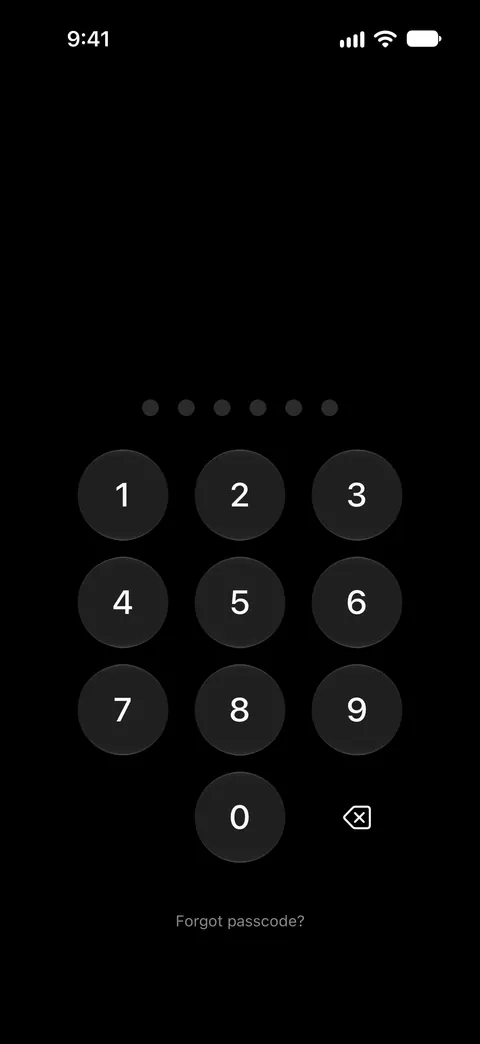
Choosing the password. Sealed’s default passcode is 6 digits, and you can choose 4 or 9 digits or a password instead. If people around you might watch you type, a password or a longer code is harder to catch at a glance than four digits. You can change it later. While your vault is open, Settings, then Passcode & Unlock, then Change Passcode lets you choose a new passcode. The screen asks for the new passcode twice and does not ask for the old one.
Guessing is slow. By default, after three wrong passcodes in a row Sealed locks entry for 30 seconds, then for 1, 5, 15 and finally 60 minutes after each further wrong try. Sealed keeps the wrong-try count and the wait when you close it and open it again, and the count clears only after a correct unlock or a passcode reset with your recovery key.
The one setting to check. Face ID is convenient, but read how it works first. With plain Face ID unlock on, someone who knows your iPhone passcode can open Sealed through the Face ID prompt. If someone near you knows your iPhone passcode, turn on Dual Lock as well. Dual Lock asks for your passcode and a Face ID match together, and it is part of Sealed Pro. Dual Lock’s second step takes Face ID or Touch ID only: your iPhone passcode can’t stand in for it, so one watched passcode can’t do both halves. Dual Lock, Lock Screen, Maximum Security and Vault Passphrase are in Settings, under Passcode & Unlock, in the Extra Protection section.
Moving the photos in. Tap the plus button at the top of the vault, then Photos, and pick them. Sealed imports only the photos and videos you choose, and deletes the originals in Photos only when you ask. After you import photos, Sealed asks whether to delete the originals from Photos or keep them, and says that deleted originals move to Recently Deleted in Photos. The free plan holds up to 100 photos. On the free plan you can add photos. Videos, documents, notes and records need Sealed Pro.
Plan for the day you forget it
A password strong enough to keep someone out is also strong enough to keep you out. Decide now how you would get back in.
- Notes: there is no way back for notes locked with a forgotten Notes password, as Apple says above. Keep the password in a password manager.
- Sealed: During setup Sealed gives you a recovery key: a long code of letters and numbers, in groups, that can bring your vault back. On the lock screen, Forgot passcode? asks for your recovery key, and once the key checks out you choose a new passcode. Resetting your passcode with the recovery key does not open the vault: you come back to the lock screen, and Dual Lock, location lock and Maximum Security still apply.
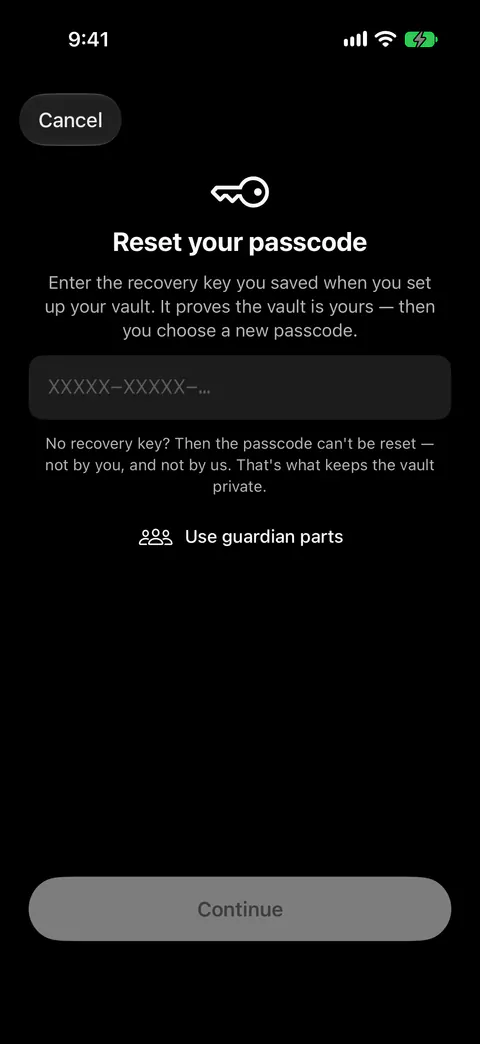
On the reset screen, Sealed says that without a recovery key the passcode can’t be reset, not by you and not by us. Keep the key on paper, away from the phone. The recovery key screen can save or print your key as a PDF sheet, so you can keep a copy on paper that outlives the phone.
Not quite your question?
- To get photos out of the camera roll and you don’t mind the iPhone passcode: take them off the grid with the Hidden album.
- One photo, with its own code even inside the vault: lock a single photo.
- A face check on the whole Photos app: lock Photos with Face ID.
Where Sealed helps, and where it doesn’t
It helps with a passcode or password that is not your iPhone’s, and with a way back if you forget it. You can open Sealed with Face ID or Touch ID, a 4-, 6- or 9-digit passcode, a password or a pattern. If you forget your passcode, your recovery key lets you set a new one.
It helps because the photos are encrypted with a random key, not with your password. Your vault key is a random 256-bit key. It is not made from your passcode. Your passcode is a gate in front of the app. It is not part of the key.
It doesn’t stop someone with your iPhone passcode while only plain Face ID unlock is on. With plain Face ID unlock on, someone who knows your iPhone passcode can open Sealed through the Face ID prompt.
It doesn’t keep its key from the app while the phone is unlocked, unless Maximum Security is on. Without Maximum Security, the app can read your vault key whenever the phone is unlocked, because the key sits in the Keychain.
It can’t let you in without your passcode or your recovery key. Because your key never reaches us, we cannot recover your vault or reset your passcode for you.
Questions and answers
Can I set a different password for the Hidden album?
No. From iOS 16, Photos keeps its album for set-aside photos, and Recently Deleted, locked by default: they open with Face ID, Touch ID or your iPhone passcode. There is no separate password to set, so it opens with the same passcode as your iPhone.
How do I password protect a photo album on iPhone?
Photos can’t put a password on an album you made. Move the photos into a note locked with a Notes password, or into a vault app with a passcode of its own, and delete the originals from Photos afterwards. When you delete photos and videos in Photos, they go to its Recently Deleted album for 30 days, and after that they are permanently deleted.
Can Face ID open a photo vault that has its own password?
In Sealed, yes, if you turn it on. During setup Sealed offers Face ID or Touch ID, and you can choose Not now. With plain Face ID unlock on, someone who knows your iPhone passcode can open Sealed through the Face ID prompt. Dual Lock asks for your passcode and a Face ID match together, and it is part of Sealed Pro.
What happens if I forget my vault password?
In Sealed, the recovery key sets a new one. If you forget your passcode, your recovery key lets you set a new one. Because your key never reaches us, we cannot recover your vault or reset your passcode for you.
Sources
What this page says about Sealed was checked against the app on .
- Apple Support, How to lock or unlock notes on your iPhone or iPad (article 102537) — read 28 Nov 2026; Use iPhone Passcode or a password only for Notes; iCloud Keychain for the passcode option; a forgotten notes password
- Apple iPhone User Guide, deleting photos and moving them out of the Library (iOS 27) — read 28 Nov 2026; the Hidden album opens with Face ID, Touch ID or the passcode
- Apple iPhone User Guide, Lock or move an app (iOS 27) — read 28 Nov 2026; Require Face ID (or Touch ID or Passcode)
- Sealed on the App Store — the vault app used as the example
Get Sealed
Sealed is free to download, and Sealed Pro is an optional in-app purchase.

Sealed: Private Photo Vault
Sealed is free to download, and Sealed Pro is an optional in-app purchase.