Guide
Lock one photo on iPhone, not your whole library
The Photos app can’t lock one picture: its only locks are on the Hidden album and Recently Deleted, and your iPhone passcode opens both. To give a single photo its own lock, put it somewhere that takes a separate code: a note locked with a Notes password, or a stack in a vault app that has a PIN of its own. Then delete the original from Photos, or the unlocked copy is still there.

On this page
First, the honest answer
There is no lock button on a single picture in the Photos app. What iOS offers instead:
- The Hidden album. One album for every photo you move out of the Library. From iOS 16, Photos keeps its album for set-aside photos, and Recently Deleted, locked by default: they open with Face ID, Touch ID or your iPhone passcode. It is a lock on a whole collection, and your iPhone passcode opens it. If that is all you need, the steps are in taking photos off the grid.
- A lock on the whole Photos app. Everything or nothing, again opened by your passcode. See locking the Photos app with Face ID.
Neither puts a lock on one photo. People who search for this usually have one picture that matters more than the rest: an ID, a document, a photo meant for one person, and they want it shut even from someone who can open the rest of the phone. That needs a separate code, kept somewhere else.
Option 1: a locked note, free and built in
Good for one picture that belongs beside a few lines of text.
- Open Notes and start a new note.
- Add the photo with the Attachments button.
- Tap the More button, then tap Lock.
- The first time, choose Use iPhone Passcode, or create a password used only for Notes (Apple).
Pick the Notes password if the point is a code your iPhone passcode can’t open. In Notes you can lock a note with your iPhone passcode or with a password only for Notes, and Apple says both options use end-to-end encryption for iCloud accounts.
Before you rely on it:
- Apple says it doesn’t have access to locked notes and can’t help you open them if you forget your notes password, and that resetting the password doesn’t open notes locked with the old one.
- Apple says you can’t lock notes that have tags, PDFs, audio, video, or Keynote, Pages or Numbers documents, or notes you share with someone else.
- The photo you attached is a copy. The original stays in your Library until you delete it there, then it waits in Recently Deleted. When you delete photos and videos in Photos, they go to its Recently Deleted album for 30 days, and after that they are permanently deleted.
Option 2: a PDF with a password, for a photo of a document
If the photo is a page (a contract, a letter, an ID) and you may send it on, a PDF with a password keeps the lock on the file wherever it goes.
- Turn the photo into a PDF, or scan the page into one in Files. In the Files app you can scan a document with the camera, choose where to keep it and tap Save.
- Open the PDF in the Preview app.
- Tap the Actions menu next to the file name, then tap Lock.
- Enter the same password in Password and Verify, then tap Done (Apple).
Read Apple’s own description before you trust it with something private: The Preview app on iPhone can lock a PDF with a password, which Apple describes as a way to prevent others from editing or deleting your work. Open the locked file once to see what it asks for on your phone. Apple suggests duplicating the file first if you want an unlocked copy.
Option 3: a vault stack with a PIN of its own
A vault app keeps photos behind its own passcode. Sealed adds a second, per-stack lock, so one photo can sit in a stack of its own and stay shut even while the vault is open.
- Add the photo to the vault. In Sealed, tap the plus button at the top of the vault, then Photos. Sealed imports only the photos and videos you choose, and deletes the originals in Photos only when you ask.
- Make a stack for it. On the Stacks tab, tap the plus button and give the new stack a name. Stacks and sub-stacks keep your vault organized.
- Put the photo in the stack. Open the photo in the vault, tap its menu, choose Add to Stack and pick the new stack.
- Lock the stack. Open it, tap its menu, then Lock Stack, and choose a PIN twice. In a stack’s menu, Lock Stack gives that stack a PIN of its own, which you can change or remove later.
- Delete the original from Photos. After you import photos, Sealed asks whether to delete the originals from Photos or keep them, and says that deleted originals move to Recently Deleted in Photos.
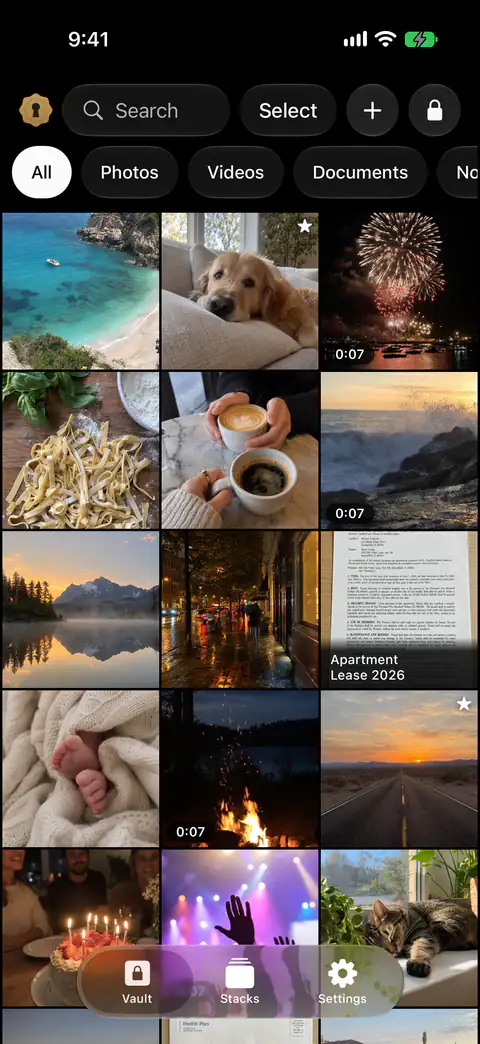
The stack’s PIN is asked on top of the vault’s own unlock. A locked stack also locks every sub-stack inside it. Each stack can have its own lock, and stack locks are part of Sealed Pro.
Which one fits
| You want | Use |
|---|---|
| One picture plus some notes, a code that isn’t your passcode, nothing to install | A note with a Notes password |
| A document photo you will send to someone | A PDF locked in Preview |
| A lock on one photo even while the rest of the vault is open | A locked stack in a vault |
| Only to keep it out of the grid | The Hidden album |
If what you want is a password on a whole set of photos, not one, password protecting photos covers that.
Where Sealed helps, and where it doesn’t
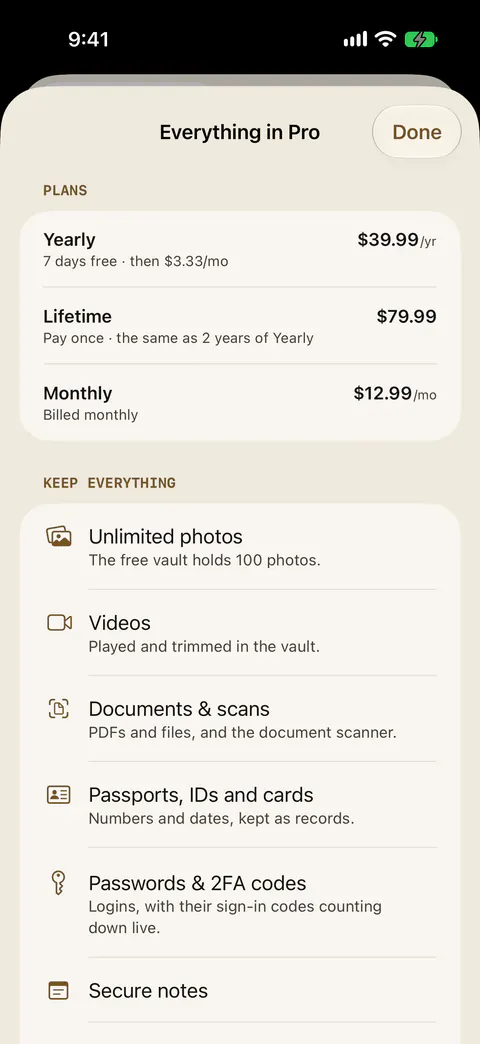
It helps with a lock per stack, separate from the vault’s own passcode. Each stack can have its own lock, and stack locks are part of Sealed Pro.
It helps because the photo is encrypted in the vault, not only behind a screen. Photos and videos are sealed the moment they arrive, and afterwards you can remove the originals from Photos if you like.
It doesn’t lock a photo on its own: the lock is on the stack the photo sits in. In a stack’s menu, Lock Stack gives that stack a PIN of its own, which you can change or remove later.
It doesn’t remove the original from Photos unless you ask it to. Until you delete them, the originals stay in Photos, outside the vault.
It can’t open a locked vault if you lose both your passcode and your recovery key. Because your key never reaches us, we cannot recover your vault or reset your passcode for you.
Questions and answers
Can I put a lock on just one album in Photos?
No. From iOS 16, Photos keeps its album for set-aside photos, and Recently Deleted, locked by default: they open with Face ID, Touch ID or your iPhone passcode. Albums you make yourself have no lock of their own.
Can I lock a photo with a different code from my iPhone passcode?
Yes, but not inside Photos. A note locked with a Notes password, or a vault stack with its own PIN, asks for a code that is not your iPhone’s. In Notes you can lock a note with your iPhone passcode or with a password only for Notes, and Apple says both options use end-to-end encryption for iCloud accounts.
Can a locked note hold a video instead of a photo?
No. Apple says you can’t lock notes that have tags, PDFs, audio, video, or Keynote, Pages or Numbers documents, or notes you share with someone else.
Is a locked stack in Sealed free?
Each stack can have its own lock, and stack locks are part of Sealed Pro. Stacks themselves are free. The free plan includes passcode and Face ID lock, the recovery key, Recently Deleted, encrypted iCloud backup, stacks, the photo editor, the private browser and the USB drop box.
Sources
What this page says about Sealed was checked against the app on .
- Apple Support, How to lock or unlock notes on your iPhone or iPad (article 102537) — read 28 Nov 2026; More, then Lock; Use iPhone Passcode needs iCloud Keychain; what can’t be locked; a forgotten notes password
- Apple iPhone User Guide, Lock PDFs in Preview on iPhone (iOS 27) — read 28 Nov 2026; the Actions menu, Lock, Password and Verify; Apple describes it as preventing others from editing or deleting the file
- Apple iPhone User Guide, deleting photos and moving them out of the Library (iOS 27) — read 28 Nov 2026; the locked collections in Photos
- Sealed on the App Store — the vault app used as the example
Get Sealed
Sealed is free to download, and Sealed Pro is an optional in-app purchase.

Sealed: Private Photo Vault
Sealed is free to download, and Sealed Pro is an optional in-app purchase.