Guide
How to hide a video on iPhone, and keep it locked
Open the video in Photos, tap the More button, then tap Hide. The clip leaves your Library, the Videos list and the Photos widget and moves to the Hidden album under Utilities, which asks for Face ID, Touch ID or your passcode from iOS 16 on. That is free and takes seconds. It does not give the clip a code of its own: anyone who can unlock the phone can open the album. For that, keep the clip in a vault app with its own passcode.

On this page
The free way: the Hidden album in Photos
Every iPhone can take a clip out of the main grid with the Photos app. The steps below are from Apple’s iPhone guide for iOS 27; earlier versions use the same words.
One clip
- Open Photos and open the video.
- Tap the More button (the three dots), then tap Hide.
- Confirm. You can also touch and hold the clip in the grid and tap Hide, as Apple’s article on the album shows.
Several clips at once
- In Photos, open your Library or a collection. Videos under Media Types lists only clips.
- Tap Select, then tap each clip.
- Tap the More button, then tap Hide.
Watching one again
Tap Collections, then the Hidden album below Utilities, tap View Album and unlock with Face ID, Touch ID or your passcode. To put a clip back, open it, tap the More button and tap Unhide.
What this does, and what it doesn’t
Photos you move out of the Library into Apple’s separate locked album stay out of the Library, other albums and the Photos widget, and from iOS 16 that album asks for authentication to open. With iCloud Photos on, the move follows you. If you use iCloud Photos, a photo you move into that locked album is moved out of the Library on your other devices too.
The lock is the phone’s own. From iOS 16, Photos keeps its album for set-aside photos, and Recently Deleted, locked by default: they open with Face ID, Touch ID or your iPhone passcode. So a person who knows your iPhone passcode, or who you hand an unlocked phone to, can open the album with a tap. Three more limits are worth knowing:
- The lock can be switched off. The Hidden album and Recently Deleted are locked by default, and turning off Use Face ID, Use Touch ID or Use Passcode in Settings, under Apps, then Photos, takes that lock away.
- Apps with full photo access still see it. Apple says that giving an app full access to your photos grants it your photos and videos, including the ones in the Hidden album even if that album is locked.
- Copies you already sent stay where they went. A clip in a chat or a shared album isn’t touched by moving your own copy.
Two other free options, and why they fall short for video
A locked note. Notes can lock a note with your passcode or a separate password, but not one that holds a clip. Apple says you can’t lock notes that have tags, PDFs, audio, video, or Keynote, Pages or Numbers documents, or notes you share with someone else. That rules Notes out for video.
Lock the Photos app. From the Home Screen, touch and hold Photos and tap Require Face ID (Apple’s guide). The whole app then asks for your face each time, and it locks again after you quit it. It is the same face and the same passcode as the phone, and it locks every photo, not just the clips you care about. Locking the Photos app covers it step by step.
Don’t forget screen recordings. Apple’s guide says a screen recording is saved to your photo library. A recording of a bank app or a private chat sits there as an ordinary video until you move or delete it.
Built-in or vault: which one fits
| You want to | Hidden album | Vault app |
|---|---|---|
| Keep clips off the main grid | Yes | Yes |
| Need a code that isn’t the iPhone passcode | No | Yes |
| Stop a person who knows your passcode | No | Yes, if they don’t know the vault’s code |
| Record without the clip ever reaching Photos | No | Some vaults |
| Pay nothing | Yes | Often not for video |
If the people you share a home with know your iPhone passcode, the Hidden album won’t keep them out. That is the case a vault is built for.
Keep videos in Sealed
Sealed keeps clips in its own encrypted store, behind a passcode of its own. Sealed has a passcode of its own, a gate inside the app that is separate from your iPhone passcode. Sealed encrypts every file with AES-256-GCM before it is saved. Video is part of Sealed Pro. On the free plan you can add photos. Videos, documents, notes and records need Sealed Pro.
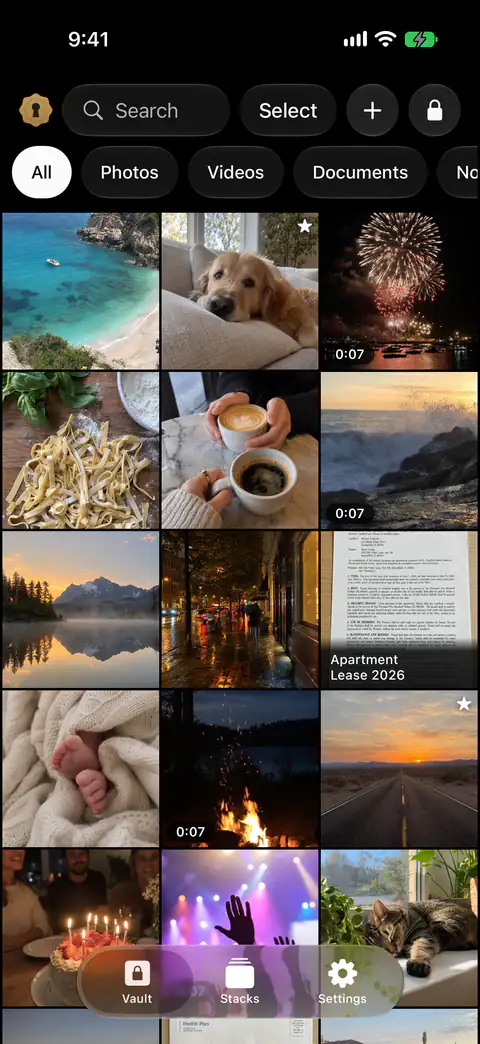
- Open Sealed and tap the plus button at the top of the vault. The plus button at the top of the vault opens a menu with Photos, Files & Documents, Private Camera, Scan Document, Voice Memo, From Computer (Wi-Fi), From Contacts, New Note and New Record.
- Tap Photos and pick the clips. Sealed imports only the photos and videos you choose, and deletes the originals in Photos only when you ask.
- Decide about the originals. After you import photos, Sealed asks whether to delete the originals from Photos or keep them, and says that deleted originals move to Recently Deleted in Photos. If you keep them, they stay in your Library. Until you delete them, the originals stay in Photos, outside the vault.
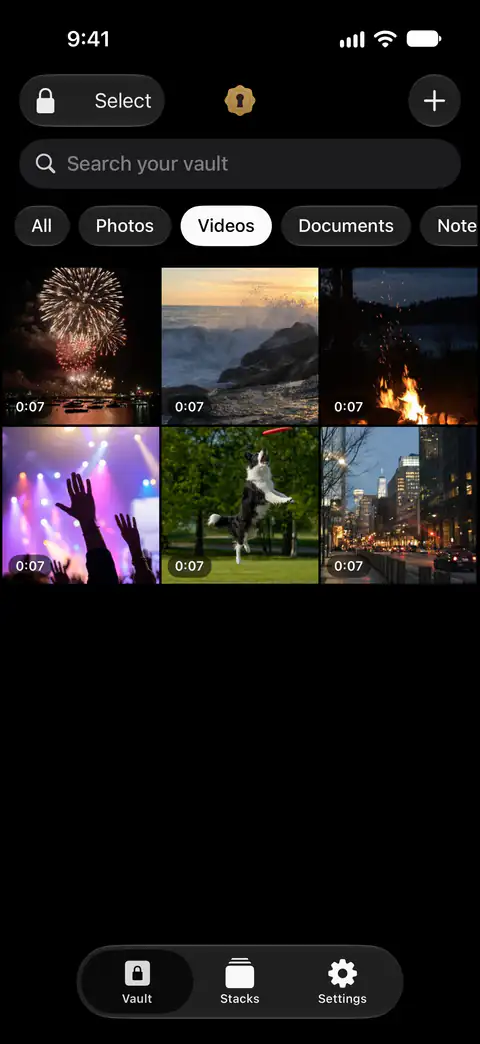
- Find them under Videos. The vault has filters across the top for All, Photos, Videos, Documents, Notes, Records and Favorites.
To film something that should never sit in Photos at all, use Private Camera from the same plus menu. The private camera captures photos and videos directly into your encrypted vault. The private camera is part of Sealed Pro. Long clips are checked as they open. Large files are encrypted in chunks, and Sealed refuses a file that has been changed, reordered or cut short. You can also trim a clip without it leaving the vault. The photo editor is free, video trimming is part of Sealed Pro, and both work without anything leaving the vault.
If a clip won’t come in: with Optimize iPhone Storage on, the phone may hold only a smaller copy and fetch the original from iCloud, so stay on a network and give it a moment. Optimize iPhone Storage is on by default; to keep the full-size originals on the iPhone, go to Settings, tap your name, then iCloud, Photos, iPhone Storage, and choose Download and Keep Originals.
Where Sealed helps, and where it doesn’t
It helps when the person you’re keeping a clip from knows your iPhone passcode: the vault asks for its own. Sealed has a passcode of its own, a gate inside the app that is separate from your iPhone passcode. Your passcode is a gate in front of the app. It is not part of the key.
It helps when you want clips filmed straight into encrypted storage, never into Photos. The private camera captures photos and videos directly into your encrypted vault.
It doesn’t keep videos on the free plan. On the free plan you can add photos. Videos, documents, notes and records need Sealed Pro.
It doesn’t remove the original from Photos until you say so, and it can’t reach copies you already sent. Until you delete them, the originals stay in Photos, outside the vault. Your files never leave your iPhone unless you turn on iCloud backup or export them yourself.
It can’t let you back in without your passcode or your recovery key. Because your key never reaches us, we cannot recover your vault or reset your passcode for you.
Questions and answers
Where does a video go when I tap Hide?
To the Hidden album in Photos. In Photos on iPhone, the Hidden album is under Collections, below Utilities, and it opens when you tap View Album and unlock. It stops showing in the Library, other albums and the Photos widget, and with iCloud Photos it moves on your other devices too. If you use iCloud Photos, a photo you move into that locked album is moved out of the Library on your other devices too.
Can I put a password on a single video?
Not in Photos. The Hidden album opens with Face ID, Touch ID or the iPhone passcode, and Notes can’t lock a note with a video in it. Apple says you can’t lock notes that have tags, PDFs, audio, video, or Keynote, Pages or Numbers documents, or notes you share with someone else. A vault app gives clips a code that isn’t your iPhone’s. Sealed has a passcode of its own, a gate inside the app that is separate from your iPhone passcode.
Can someone else open the Hidden album?
Anyone who knows your iPhone passcode can. From iOS 16, Photos keeps its album for set-aside photos, and Recently Deleted, locked by default: they open with Face ID, Touch ID or your iPhone passcode. And the lock can be switched off in Settings. The Hidden album and Recently Deleted are locked by default, and turning off Use Face ID, Use Touch ID or Use Passcode in Settings, under Apps, then Photos, takes that lock away.
Does Sealed keep videos on the free plan?
No. On the free plan you can add photos. Videos, documents, notes and records need Sealed Pro. Sealed Pro lifts the photo limit and adds, among other things, videos, documents, notes, records, the private camera, voice memos, wireless transfer, Space Saver, the duplicate finder and video trimming.
Sources
What this page says about Sealed was checked against the app on .
- Apple iPhone User Guide, delete photos and videos or move them to the Hidden album (iOS 27) — read 28 Nov 2026; the More button while viewing, Select for several, View Album below Utilities, Unhide, the Face ID setting under Apps, then Photos
- Apple Support, the Hidden album in Photos (article 104987) — published March 16, 2026, read 28 Nov 2026; touch and hold a clip, where it stops showing, iCloud Photos, the Show Hidden Album switch
- Apple Support, How to lock or unlock notes on your iPhone or iPad (article 102537) — published December 11, 2025, read 28 Nov 2026; a note with video can’t be locked
- Apple iPhone User Guide, Lock or keep an app off the Home Screen (iOS 27) — read 28 Nov 2026; Require Face ID from the Quick Actions menu, relocks after you quit
- Apple iPhone User Guide, Take a screen recording on iPhone (iOS 27) — read 13 Nov 2026; recordings are saved to the photo library
- Sealed on the App Store — the listing for the vault app this guide uses
Get Sealed
Sealed is free to download, and Sealed Pro is an optional in-app purchase.

Sealed: Private Photo Vault
Sealed is free to download, and Sealed Pro is an optional in-app purchase.