Guide
Take private photos off the grid people scroll on your iPhone
Open the photo in Photos, tap More, then tap Hide. It leaves your Library and every other album, and the Hidden album that now holds it opens only with Face ID, Touch ID or your iPhone passcode. That is enough when the worry is someone scrolling past it. It is not enough when that person knows your passcode, or when an app has full access to your photos: then move the photo out of Photos into a vault with a lock of its own.

On this page
Take a photo off the main grid in three taps
This is the right first step when the problem is simple: you show people your phone, scroll through pictures with friends, or pass it to a child, and a few photos should not come up. iOS does it for free, with nothing to install. The steps below are from Apple’s iPhone User Guide.
- Open Photos and open the photo or video.
- Tap the More button (the three dots).
- Then tap Hide.
The photo is now in the Hidden album and nowhere else in Photos. Photos you move out of the Library into Apple’s separate locked album stay out of the Library, other albums and the Photos widget, and from iOS 16 that album asks for authentication to open.
To look at it later: open Photos, tap Collections, scroll to Utilities, open the Hidden album, tap View Album, then unlock.
To put it back: open the photo there, tap More, then tap Unhide.
Check two switches before you rely on it
Both are in Settings, then Apps, then Photos (Apple).
- Use Face ID (or Use Touch ID, or Use Passcode). Leave it on. The Hidden album and Recently Deleted are locked by default, and turning off Use Face ID, Use Touch ID or Use Passcode in Settings, under Apps, then Photos, takes that lock away.
- Show Hidden Album. On iPhone the Hidden album is shown by default, and turning off Show Hidden Album in Settings, under Apps, then Photos, means the photos in it aren’t visible in Photos. Turning it off takes the album itself out of the Collections list. It changes what is shown, not who can get in: the photos are still there for anyone who switches it back on.
What the Hidden album keeps out, and what it doesn’t
| Who or what | Kept out? | Why |
|---|---|---|
| Someone scrolling your Library, albums or the Photos widget | Yes | The photo is no longer there |
| Someone who opens the Hidden album without your face or finger | Yes | It asks you to unlock first |
| Someone who knows your iPhone passcode | No | The passcode opens the album |
| An app you gave full access to your photos | No | Apple says full access includes the album |
| Your other devices on iCloud Photos | Partly | Out of the Library there too, still in their Hidden album |
Two of those rows need a sentence each. On apps: Apple says that giving an app full access to your photos grants it your photos and videos, including the ones in the Hidden album even if that album is locked. You can review which apps have that access in Settings, under Privacy & Security, then Photos. Apple says you control whether third-party apps can access information in Photos, Contacts, Calendar and other apps, and Settings, under Privacy & Security, lists the apps that asked and lets you turn each one on or off. On the passcode: From iOS 16, Photos keeps its album for set-aside photos, and Recently Deleted, locked by default: they open with Face ID, Touch ID or your iPhone passcode.
If neither row worries you, you are done. If one does, the next section is the step further.
When the photos should leave Photos altogether
A vault app keeps its own encrypted copy behind a code that is not your iPhone’s, and once you delete the original, the photo is no longer in your library for a person or an app to find. Here is how that goes in Sealed: Private Photo Vault.
- Install Sealed and set it up. Sealed is free to download, and Sealed Pro is an optional in-app purchase. When you first open Sealed it takes you through a few screens, asks you to make a passcode, and shows you your recovery key. Write the recovery key down; it is the only way back if you forget the passcode. Because your key never reaches us, we cannot recover your vault or reset your passcode for you.
- Tap the plus button at the top of the vault, then Photos. The plus button at the top of the vault opens a menu with Photos, Files & Documents, Private Camera, Scan Document, Voice Memo, From Computer (Wi-Fi), From Contacts, New Note and New Record.
- Pick the photos. Sealed imports only the photos and videos you choose, and deletes the originals in Photos only when you ask. The free plan holds up to 100 photos.
- Choose what happens to the originals. After you import photos, Sealed asks whether to delete the originals from Photos or keep them, and says that deleted originals move to Recently Deleted in Photos. Tap Keep Originals if you want to check the vault first; you can delete them from Photos yourself afterwards.
- Empty Recently Deleted in Photos if you don’t want the originals to linger there. When you delete photos and videos in Photos, they go to its Recently Deleted album for 30 days, and after that they are permanently deleted. To remove a deleted photo for good before the time is up, open Recently Deleted in Photos, select the photo, tap More, tap Delete and confirm, and Apple says you cannot get it back after that.
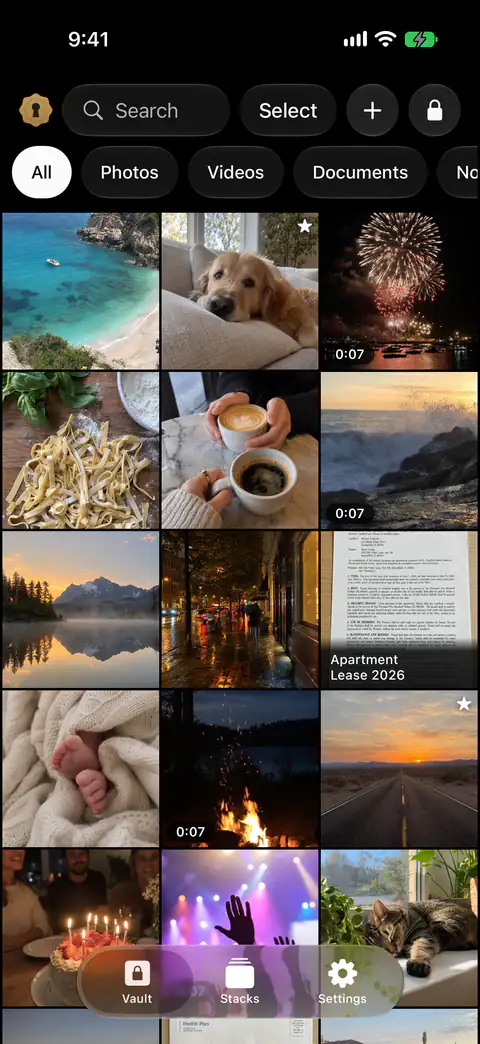
Photos and videos are sealed the moment they arrive, and afterwards you can remove the originals from Photos if you like. Sealed locks as soon as you leave it unless you choose a delay, and it covers its contents in the app switcher.
If you don’t know which photos to move
Most people remember the obvious pictures and forget the screenshot of a passport or a card from two years ago. Find Private Photos checks your camera roll for passports and IDs, cards, codes, recovery phrases and password screenshots, and offers to seal them. Find Private Photos runs on your iPhone: nothing is sent anywhere, and the text it reads isn’t kept. Find Private Photos picks out photos that look like they belong in your vault, and nothing is sealed until you choose it.
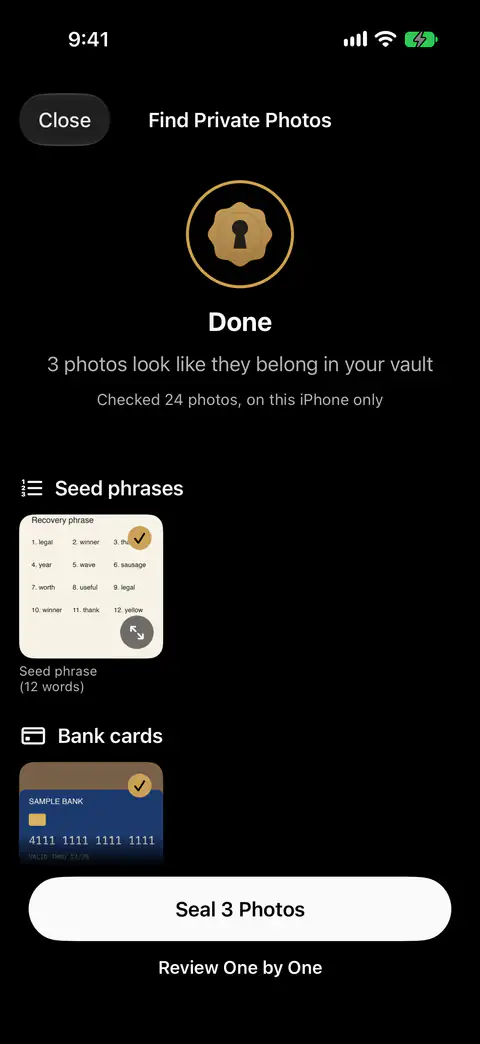
Find Private Photos is free, and the photos it seals follow the same free-plan rules as any import. Find Private Photos is in the vault’s plus menu and in Settings under Library, and it is never offered in a decoy vault.
Three related jobs, three pages
Keeping photos out of view is one wish among several. If yours is a little different, one of these fits better:
- One photo that needs a lock of its own, even from someone who can open the rest: lock a single photo on iPhone.
- A password that is not your iPhone passcode: password protect photos on iPhone.
- Nothing visible at all when someone opens Photos: lock the whole Photos app with Face ID.
For the built-in album and a vault side by side, read the Hidden album compared with a photo vault.
Where Sealed helps, and where it doesn’t
It helps when the person you are keeping a photo from knows your iPhone passcode. Sealed has a passcode of its own, a gate inside the app that is separate from your iPhone passcode.
It helps take the photo out of the library apps can read, once you delete the original. Until you delete them, the originals stay in Photos, outside the vault.
It doesn’t fully shut out your iPhone passcode while only the plain Face ID switch is on. With plain Face ID unlock on, someone who knows your iPhone passcode can open Sealed through the Face ID prompt. Dual Lock asks for your passcode and a Face ID match together, and it is part of Sealed Pro.
It doesn’t take videos on the free plan. On the free plan you can add photos. Videos, documents, notes and records need Sealed Pro.
It doesn’t survive deleting the app unless backup is on. If you delete Sealed from an iPhone while iCloud Backup is off, the vault on that iPhone is deleted with it.
Questions and answers
Where do photos go after I tap Hide on iPhone?
Into the Hidden album, and out of your Library and other albums. In Photos on iPhone, the Hidden album is under Collections, below Utilities, and it opens when you tap View Album and unlock.
Do photos in the Hidden album show up on my iPad and Mac?
Not in the Library. If you use iCloud Photos, a photo you move into that locked album is moved out of the Library on your other devices too. They are still in the Hidden album on those devices, and on a Mac its lock is a separate setting. In Photos settings on a Mac, a Use Touch ID or password option sets whether the Hidden album and Recently Deleted need a password or Touch ID to open.
Can someone who knows my passcode open the Hidden album?
Yes. From iOS 16, Photos keeps its album for set-aside photos, and Recently Deleted, locked by default: they open with Face ID, Touch ID or your iPhone passcode. The passcode is one of the ways in, so the Hidden album keeps photos out of view, not away from a person who has it.
Is it safe to delete the original after I move a photo into a vault app?
Check that it opens in the vault first. In Sealed: After you import photos, Sealed asks whether to delete the originals from Photos or keep them, and says that deleted originals move to Recently Deleted in Photos. When you delete photos and videos in Photos, they go to its Recently Deleted album for 30 days, and after that they are permanently deleted.
Sources
What this page says about Sealed was checked against the app on .
- Apple iPhone User Guide, deleting photos and moving them out of the Library (iOS 27) — read 28 Nov 2026; the More button, then tap Hide; Collections then the Hidden album below Utilities, View Album, Unhide, and the two switches under Settings, Apps, Photos
- Apple Legal, Photos & Privacy — what an app with full access to your photos can read, the Hidden album included
- Sealed on the App Store — the vault app this guide uses as the example
Get Sealed
Sealed is free to download, and Sealed Pro is an optional in-app purchase.

Sealed: Private Photo Vault
Sealed is free to download, and Sealed Pro is an optional in-app purchase.