Guide · Private photos
Moving photos into a vault app, without leaving copies behind
A vault app copies your photos; it does not move them. So the job has four parts: make sure the vault is backed up, import the photos, check they opened, then delete the originals in Photos and empty Recently Deleted. If you only want them off the main grid, Photos can do that for free by moving them to its Hidden album. With iCloud Photos on, a delete reaches every device. Copies you sent or shared stay where they went.

On this page
First decide what “out of the camera roll” means to you
There are two different jobs here, and iOS already does the first one for free.
| You want | Free in iOS | Needs a vault app |
|---|---|---|
| Photos off the main grid, the widget and other albums | Yes, the Hidden album | No |
| A separate code that your iPhone passcode does not open | No | Yes |
| Photos out of the library that other apps can be given | No | Yes |
| Documents, notes or card numbers kept beside them | No | Yes |
If the first row is all you need, you can stop after the next section.
The free way: move photos to the Hidden album
These steps are from Apple’s iPhone User Guide and Apple Support:
- Open Photos and tap Select, then tap the photos you want to move.
- Tap the More button, then tap Hide, and confirm.
- To see them again, open Collections, find the Hidden album below Utilities, tap View Album and unlock.
Photos you move out of the Library into Apple’s separate locked album stay out of the Library, other albums and the Photos widget, and from iOS 16 that album asks for authentication to open. If you use iCloud Photos, a photo you move into that locked album is moved out of the Library on your other devices too. The photos are still in your Photos library, though, and your iPhone’s own unlock opens the album. The Hidden album vs a photo vault page goes through what that does and does not protect.
Into a vault: six steps
The steps below use Sealed. Any vault worth trusting will have the same moments; only the button names differ.
1. Make sure the vault has a backup
Once the originals are deleted, the vault holds the only copy. If the phone is lost and the vault was never backed up, the photos go with it. If you delete Sealed from an iPhone while iCloud Backup is off, the vault on that iPhone is deleted with it.
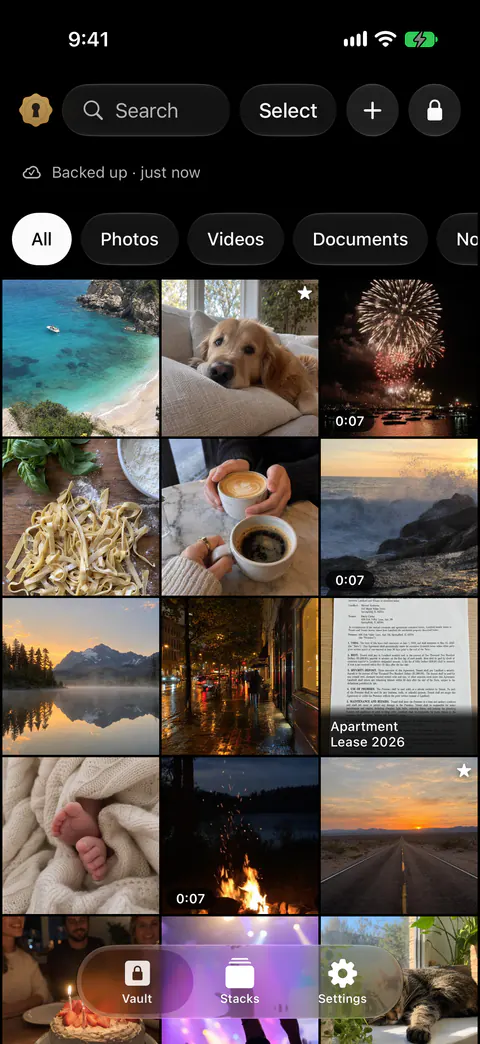
In Sealed, save your recovery key first. The first time you save your recovery key, Sealed also turns on iCloud Backup, which is free. The vault home shows when you last backed up, or says plainly that your vault is only on this iPhone.
2. Import the photos
Tap the plus button at the top of the vault and choose Photos, then pick the pictures. Sealed imports only the photos and videos you choose, and deletes the originals in Photos only when you ask. Photos and videos are sealed the moment they arrive, and afterwards you can remove the originals from Photos if you like.
Start with a small batch. On the free plan, a pick that is too big is not split: On the free plan, a pick that would take the vault past its limit is refused whole, so nothing is half-imported: Sealed says the free plan holds 100 items and opens the Sealed Pro page.
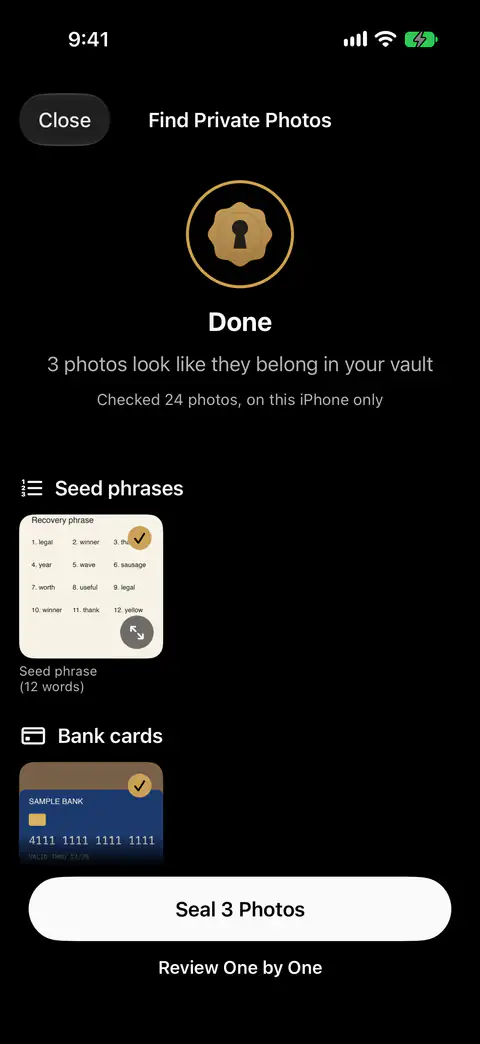
If you are not sure what belongs in the vault, Sealed can look for you. Find Private Photos checks your camera roll for passports and IDs, cards, codes, recovery phrases and password screenshots, and offers to seal them. Find Private Photos runs on your iPhone: nothing is sent anywhere, and the text it reads isn’t kept.
3. Check what arrived
Open a few of the imported photos at full size and play any videos. You are looking for a blank tile, a missing clip or a photo that will not open. Fix it now, while the originals still exist.
4. Delete the originals
After you import photos, Sealed asks whether to delete the originals from Photos or keep them, and says that deleted originals move to Recently Deleted in Photos. The prompt has two buttons, Delete Originals from Photos and Keep Originals, and iOS asks once more before anything is deleted.
If you kept them and change your mind, delete by hand: in Photos, tap Select, choose the photos, tap the Trash button and confirm (Apple Support).
5. Empty Recently Deleted
Deleted photos are not gone yet. When you delete photos and videos in Photos, they go to its Recently Deleted album for 30 days, and after that they are permanently deleted. In iOS 16 and later, Photos asks for Face ID or Touch ID before it opens the Recently Deleted album, unless you turn that off in Settings. To finish now: To remove a deleted photo for good before the time is up, open Recently Deleted in Photos, select the photo, tap More, tap Delete and confirm, and Apple says you cannot get it back after that.
If you use iCloud Photos and delete a photo on one device, it is deleted on all your other devices where you are signed in with the same Apple Account. Apple’s confirmation offers Delete from All Devices for this reason. If iCloud Photos is off, each iPad or Mac has its own library: repeat the steps there.
6. Look for the copies that live elsewhere
A photo usually exists in more than one place:
- Shared albums. When you share photos in a shared album, the people you share with can save them to their own libraries, and photos saved that way stay in their library even if the shared album is deleted.
- Chats. A photo you sent stays in the conversation, on your phone and on theirs.
- Screenshots. Screenshots are saved to your photo library automatically. In Photos, your screenshots are in the Screenshots album, under Collections and then Media Types.
- Other apps. Files, Notes and email drafts can hold copies too.
If something goes wrong
Some originals stayed in Photos. If Sealed cannot remove an original from Photos, for example because your Photos access is limited, it tells you how many stayed where they were and that your sealed copies are safe in the vault.
The import stopped at the free limit. Nothing was half-imported. Pick fewer photos, or see what Sealed Pro and Lifetime add.
You deleted a photo by mistake. Within the window, open Recently Deleted in Photos and recover it. In the vault, deleted items wait too. Recently Deleted keeps anything you remove for 30 days before it is gone for good.
Where Sealed helps, and where it doesn’t
It helps by asking about the originals the moment the import ends, so the copy in Photos is not forgotten. After you import photos, Sealed asks whether to delete the originals from Photos or keep them, and says that deleted originals move to Recently Deleted in Photos.
It helps by backing up before you need it. Encrypted iCloud backup is free. Files, names, notes and record fields are encrypted on your iPhone before they are uploaded, so iCloud receives only ciphertext.
It doesn’t reach copies you sent, shared or screenshotted. Until you delete them, the originals stay in Photos, outside the vault.
It doesn’t take videos on the free plan. On the free plan you can add photos. Videos, documents, notes and records need Sealed Pro.
It doesn’t bring back a Live Photo’s motion. A Live Photo comes into Sealed as its still image only, without the motion.
Questions and answers
Does importing a photo into a vault app delete it from Photos?
Not by itself. Importing makes a copy, and the original stays until you delete it. Until you delete them, the originals stay in Photos, outside the vault. After you import photos, Sealed asks whether to delete the originals from Photos or keep them, and says that deleted originals move to Recently Deleted in Photos.
Where do deleted photos go after I move them into a vault?
When you delete photos and videos in Photos, they go to its Recently Deleted album for 30 days, and after that they are permanently deleted. You can empty that album sooner: To remove a deleted photo for good before the time is up, open Recently Deleted in Photos, select the photo, tap More, tap Delete and confirm, and Apple says you cannot get it back after that.
How many photos can I move into Sealed for free?
The free plan holds up to 100 photos. On the free plan you can add photos. Videos, documents, notes and records need Sealed Pro. On the free plan, a pick that would take the vault past its limit is refused whole, so nothing is half-imported: Sealed says the free plan holds 100 items and opens the Sealed Pro page.
Why are some photos still in Photos after I chose to delete them?
If Sealed cannot remove an original from Photos, for example because your Photos access is limited, it tells you how many stayed where they were and that your sealed copies are safe in the vault. With limited access, Sealed can only remove what you shared with it.
Can I move the photos back out of the vault later?
Yes. Viewing and exporting your own photos is always free. In an open item, Export and then Export Unlocked Copy hands a decrypted copy of that one item to the iOS share sheet.
Sources
What this page says about Sealed was checked against the app on .
- Apple Support, the Hidden album in Photos (article 104987) — published March 16, 2026; the steps to move a photo to the Hidden album and where the album is. Read 28 Nov 2026
- Apple iPhone User Guide, delete photos and videos or move them out of the Library — Select, the More button, the Hidden album below Utilities and its lock. Read 28 Nov 2026
- Apple Support, Delete photos on your iPhone or iPad (article 104967) — published March 31, 2026; deleting several photos, Recently Deleted, Delete from All Devices. Read 28 Nov 2026
- Apple Support, Share photos and videos with Shared Albums — photos saved from a shared album stay in the other person’s library; cited through the ios.shared_albums_saved fact
- Sealed on the App Store — the listing for the app used in the steps
Get Sealed
Sealed is free to download, and Sealed Pro is an optional in-app purchase.

Sealed: Private Photo Vault
Sealed is free to download, and Sealed Pro is an optional in-app purchase.