Feature
Unlock with a glance or a fingerprint
During setup Sealed offers Face ID or Touch ID, and you can choose Not now. In Settings, under Passcode & Unlock, you can turn Face ID or Touch ID Unlock off, and set, change or remove a pattern. Sealed won’t turn Face ID or Touch ID unlock off while no passcode is set, so you always keep a way in.

On this page
Switch it on in two minutes
You meet the choice once during setup, right after you pick a passcode. During setup Sealed offers Face ID or Touch ID, and you can choose Not now. If you tapped Not now, nothing is lost: the same switch sits in Settings.
- Open Sealed and unlock it.
- Tap the Settings tab, then Passcode & Unlock.
- Under Passcode & Biometrics, turn on Face ID Unlock. On an iPhone or iPad with a fingerprint sensor the row reads Touch ID Unlock instead. Since version 1.0.2, Sealed has layouts for both displays of iPhone Duo, and names Touch ID where that is what the device has.
- Confirm with your face or finger when iOS asks.
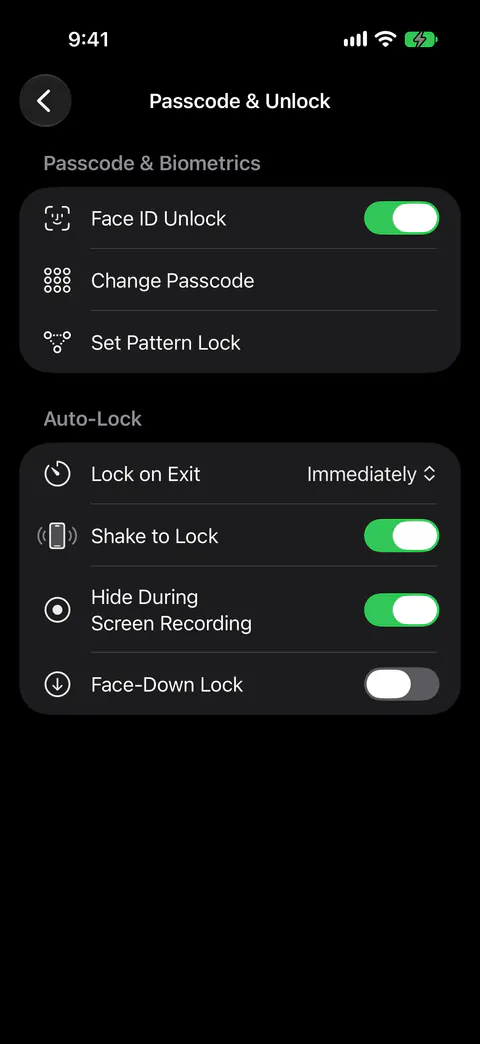
Sealed has a passcode of its own, a gate inside the app that is separate from your iPhone passcode. That passcode stays behind your face as the way in when the camera can’t see you. If you forget your passcode, your recovery key lets you set a new one.
What you see on the lock screen
With the Keypad style, the lock screen shows a large Unlock with Face ID button (or Touch ID), and a row under it switches to your passcode. If you dismiss the prompt, that row is the way in.
If you picked one of the mechanical lock screens, the lock comes first. With any lock screen style other than the Keypad, the lock screen opens on the lock and doesn’t ask for your face by itself; a Use Face ID or Use Touch ID button stays one tap away. The lock screen styles page covers each one.
When your face isn’t recognized
Bad light, a mask or a phone held at an odd angle can all fail a match. Know how Sealed treats that:
- A Face ID or Touch ID attempt that doesn’t match counts as a wrong try, but cancelling the prompt, or iOS cancelling it, does not.
- By default, after three wrong passcodes in a row Sealed locks entry for 30 seconds, then for 1, 5, 15 and finally 60 minutes after each further wrong try.
- During a wait Sealed refuses every way in, the right passcode and Face ID included, and doesn’t count those tries as wrong.
So if two attempts fail, switch to your passcode before the count runs out. iOS adds its own rule on top: Apple says Face ID allows only five unsuccessful match attempts before the iPhone asks for its passcode.
What the plain switch really checks
With Face ID unlock on, and Dual Lock and Maximum Security off, Sealed asks iOS for owner authentication and not for a face match alone. In iOS, an app that asks for owner authentication gets Face ID or Touch ID first, and the device passcode when biometry isn’t available or the person taps the fallback button. In practice: With plain Face ID unlock on, someone who knows your iPhone passcode can open Sealed through the Face ID prompt.
For most people that trade is fine. If someone around you knows your iPhone passcode, two settings close the gap:
- Dual Lock. Dual Lock asks for your passcode and a Face ID match together, and it is part of Sealed Pro. Dual Lock’s second step takes Face ID or Touch ID only: your iPhone passcode can’t stand in for it, so one watched passcode can’t do both halves.
- Maximum Security. Maximum Security seals your vault key to a Secure Enclave key that can be used only after a live Face ID or Touch ID match. Maximum Security is part of Sealed Pro.
Both are under Settings, Passcode & Unlock, in the Extra Protection section.
When the lock screen says Face ID isn’t available
With Dual Lock on, the vault needs your face as the second step. If iOS won’t let Sealed ask, the lock screen says so instead of opening on the passcode alone.
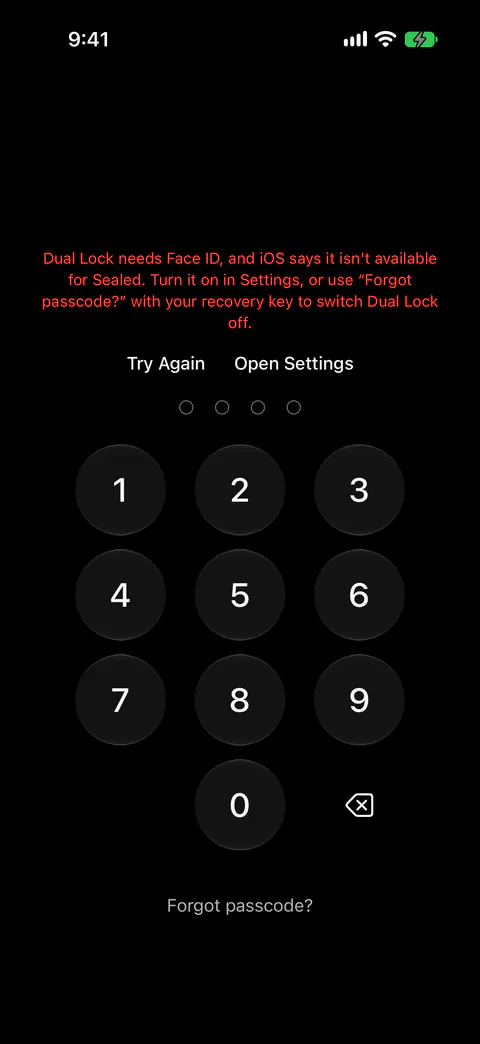
If Dual Lock can’t ask for a face, because Face ID is off for Sealed or locked, the vault stays shut instead of opening on the passcode alone, and your recovery key can turn Dual Lock off.
- Tap Open Settings. It opens iOS Settings, where you can allow Face ID for Sealed again.
- Come back and tap Try Again.
- If the message says Face ID is locked, unlock your iPhone with its own passcode first, then try again.
- If neither works, use Forgot passcode? with your recovery key. If Dual Lock is what keeps you out because Face ID can’t be asked, the recovery key also switches Dual Lock off, and Sealed tells you so.
Decoy and duress codes
Face ID and Touch ID always open your real vault: the decoy vault opens only with its own decoy passcode or decoy pattern. With Dual Lock on, the decoy passcode opens the decoy vault without the Face ID step that your real passcode needs.
If you keep a duress passcode, read its screen carefully. Sealed’s duress screen says to turn Face ID or Touch ID off for the duress passcode to help, because anyone who can make you unlock with it sees your real vault. The decoy vault page explains both codes.
Moving to a new iPhone
Face and fingerprint data never travel with an app, so expect to switch this on again after a restore.
- A vault restored onto an iPhone with Face ID or Touch ID can have no Sealed passcode yet, and you set one in Settings, under Passcode & Unlock.
- A new iPhone cannot inherit the Maximum Security binding of the old one, so you restore with your recovery key.
Switching it off for a while
Before a repair, or when someone could hold the phone up to your face, turn the switch off in Settings, Passcode & Unlock. Sealed won’t turn Face ID or Touch ID unlock off while no passcode is set, so you always keep a way in.
Where Sealed helps, and where it doesn’t
It helps you open the vault in a second, with your own passcode always one tap away, and it names the sensor your device really has. You can open Sealed with Face ID or Touch ID, a 4-, 6- or 9-digit passcode, a password or a pattern.
It doesn’t do these things:
- Stop someone who knows your iPhone passcode, while only the plain switch is on. With plain Face ID unlock on, someone who knows your iPhone passcode can open Sealed through the Face ID prompt.
- Open the decoy vault. Face ID and Touch ID always open your real vault: the decoy vault opens only with its own decoy passcode or decoy pattern.
- Follow you to a new phone. A vault restored onto an iPhone with Face ID or Touch ID can have no Sealed passcode yet, and you set one in Settings, under Passcode & Unlock.
- Get around a wait after wrong tries. During a wait Sealed refuses every way in, the right passcode and Face ID included, and doesn’t count those tries as wrong.
Questions and answers
Is Face ID unlock part of the free plan?
The free plan includes passcode and Face ID lock, the recovery key, Recently Deleted, encrypted iCloud backup, stacks, the photo editor, the private browser and the USB drop box.
Which vault does my face open if I have a decoy?
Face ID and Touch ID always open your real vault: the decoy vault opens only with its own decoy passcode or decoy pattern.
Why does a mechanical lock screen not ask for my face straight away?
With any lock screen style other than the Keypad, the lock screen opens on the lock and doesn’t ask for your face by itself; a Use Face ID or Use Touch ID button stays one tap away.
Sources
What this page says about Sealed was checked against the app on .
- Sealed on the App Store — the listing, which names the ways to open the vault
- Apple Support, About Face ID advanced technology — how many failed matches iOS allows, and the buttons that switch Face ID off for a moment
Get Sealed
Sealed is free to download, and Sealed Pro is an optional in-app purchase.

Sealed: Private Photo Vault
Sealed is free to download, and Sealed Pro is an optional in-app purchase.